Learning goals
Use basic coding agent features like inline suggestions, agent, and plan mode in scenarios like explaining code, generating functionality and tests, and fixing bugs.
Reflect on the role of AI and human in a pair programming scenario.
Reflect how to use AI as a pair programmer in a pair programming setting.
What is AI pair programming?
(15 min)
What is AI pair programming? by IBM.
In which scenarios can AI be useful as a pair programmer?
What is human’s and AI’s role in this collaboration?
What does change in a developer’s skillset with the AI as a partner?
Tasks:
Read until History of AI coding assistance
Watch the video What Is AI Pair Programming? AI Coding Tools for Developers (7:15 min)
I hope you will recognize some concepts we tried and talked before like rubber duck and pair programming.
Answer the following:
Name two benefits of pair programming.
Name three scenarios where AI as a partner can be helpful.
What is human’s and AI’s role in this collaboration?
What does change in a developer’s skillset with the AI as a partner?
Pair programming with GitHub Copilot
(60 min) I assume you have already applied for GitHub Education Benefits Application.
The following tutorials use a web-based VS Code editor called Codespaces. Prefer Codespaces because (1) AI’s actions can be dangerous if not properly monitored, and (2) running the tutorial locally will probably require some setup.[1]
Go through the following tutorial/s. The project may be about web-development, which we did not cover, but it still demonstrates how the tools work. In a real collaboration, you should be able to review AI’s output.
(30-60 min) Getting Started with GitHub Copilot
Getting Started with GitHub Copilot notes
inline suggestions
single lines to entire functions.
try writing a comment about what you want to achieve.
inline chat
Ctrl+i
useful for directly asking about a line of code
Ask mode (An additional agent in the newest GUI version, but not available in Codespaces)
does not make any changes
can be used when learning
if the goal is to learn: better is to create your own agent that gives hints instead of giving directly the answers.
Agent mode (An agent in the newest version)
can make changes
has three different autonomy modes: Interactive, Plan, Autopilot as shown in Figure 1.
Terminology
context: What the agent sees. Typically your source files.
by using
@and#you can give explicit contextmodel: an AI model, like ChatGPT Luna, GitHub Copilot
MCP tool: an external program like KiCad or Blender that the AI agent can use.
pull request: a request to implement (merge) your changes into the default (main) working version (branch) of a repository.
The programmers usually work on a separate branch to play with the code and add new features. When the work is done, they create a pull request.
Activities in the tutorial
get a project intro
use copilot to help remember a terminal command
getting work done with copilot
use Copilot to fix our registration bug
Let Copilot generate sample data
selecting code that describes different activities and using inline chat to extend the activities
Use Copilot to describe our work
Use Copilot to add a new feature
show participant list
Use Agent mode to add functional “unregister” buttons
Plan and implement backend tests
Summarize and review a PR
VS Code installation
VSCodium can not use Copilot. To use Copilot in your local editor, you need to install VS Code.
Installing VS Code is optional. You can also use Codespaces for the class and homework.
winget install Microsoft.VisualStudioCodebrew install --cask visual-studio-codeCopilot features from the tutorial on local VS Code
Copilot in VS Code 1.147 (Nov. 2026) has additional features than the Copilot in Codespaces.
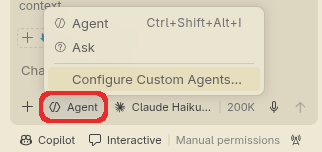
Two default agents: Agent and Ask. It gives the possibility to create your agent with custom agents.
In the following I used the tool names in the newest version. The tutorial is still helpful.
E: Copilot modes
Otherwise, if you want to use a local editor, follow VS Code installation (VSCodium is not sufficient) and enable Copilot inside your editor.