# index.html.md
# C programming
Learn C through problems first — every concept arises from a concrete challenge. These notes supplement the [C programming course](https://kurser.dtu.dk/course/62712) at DTU.
## Credits
Topics are partly based on the book [*C how to program* by Deitel et al.](https://sampling.vitalsource.com/en-au/referral?term=9781292436999).
# activity-descriptions.html.md
# Activity descriptions
## Thinking-aloud pair problem solving (TAPPS)

You work in pairs. There are two roles
- solves the problem
- thinks aloud
- listens
- asks questions if something is not clear
- gives hints *if the explainer is stuck*
In the end:
- some of you will summarize their analysis/results
- be prepared for questions from others 🙂
This is similar to the *pilot* and *navigator* in pair programming.
pair programming [](https://en.wikipedia.org/wiki/pair programming)
: a technique in which two programmers work together at one workstation. One, the driver, writes code while the other, the navigator, reviews each line of code as it is typed in. The two programmers switch roles frequently.
## Guided reciprocal peer questioning

Let us assume that you have been learning about a topic. Think about what you have learned during the session, during your homework and readings.
Steps:
1. 1 min write down two or three questions you would like to ask your classmates that will help you improve your understanding.
Concrete examples:
> How does *pseudo code* relate to our mini-projects that we have every week?
> Why does *data-logic separation* lead to less-intuitive code?
> In my homework I tried Ctrld as an input which led to a non-stopping loop. Why does this happen?
> Why is `switch` statement important? Is `if-else` not good enough?
> How do *raw strings* relate to everyday programming?
Example question stems:
> Why does \_\_\_ happen when \_\_\_ ?
> What causes \_\_\_ ?
> How do we know that \_\_ ?
> How are \_\_\_ and \_\_\_ similar?
2. 2 min ask these in groups of three.
3. Each group notes any questions they have difficulties with into the chat.
Source: [Guided Reciprocal Peer Questioning Guide](https://studylib.net/doc/7129232/guided-reciprocal-peer-questioning)
# additional-exercises.html.md
# Additional exercises
# appendix.html.md
# Appendix
There are also other foundational data structures.
## Stack

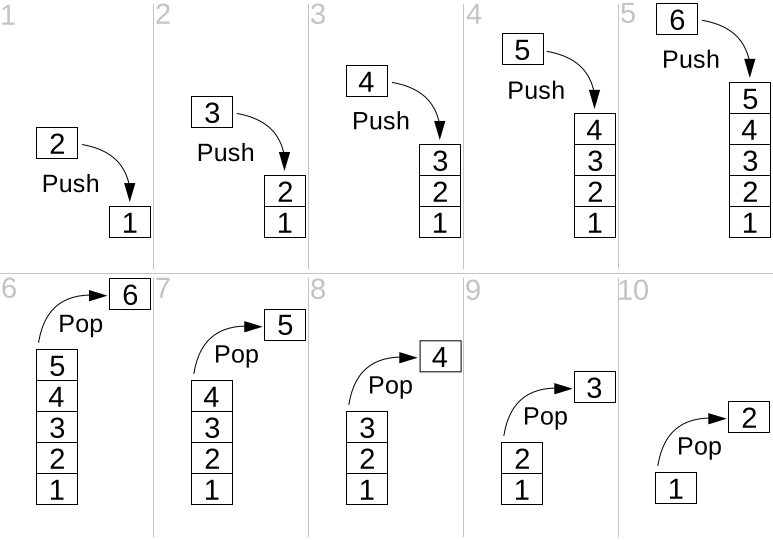
Previously we talked about [Static- and stack-based memory](../week06/variable-length-arrays.md#static-and-stack-based-memory). C uses it to execute a chain of functions. In contrast, we will talk about how we can use a stack-based data structure to solve data processing problems.
stack (abstract data type) [](https://en.wikipedia.org/wiki/stack (abstract data type))
: a collection of elements with two main operations:
1. push
2. pop
The elements are managed in a *last-in-first-out (LIFO)* manner.
## Queue

Opposite of a [stack](#stack).
Queue (abstract data type) [](https://en.wikipedia.org/wiki/Queue (abstract data type))
: a collection of elements with two main operations:
1. enqueue
2. dequeue
The elements are managed in a *first-in-first-out (FIFO)* manner.
Queues or FIFOs play a crucial role not only in the supermarket but also in information processing systems. They can be used to isolate two *chained* systems, where one system’s output is other system’s output. This isolation allows two systems to operate on different speeds:
## Tree

Tree (abstract data type) [](https://en.wikipedia.org/wiki/Tree (abstract data type))
: a data type that represents a hierarchical tree structure with a set of connected notes.
# appendix.html.md
# Appendix
## Manual download and install of the editor
1. Go to [vscodium.com/#install](https://vscodium.com/#install).
2. Click on `Download latest release`. You will be redirected to the GitHub repository of VSCodium. You will see installation packages categorized in *processor architecture*, *operating system* and *package type*.
3. Scroll to your processor architecture, e.g., `x86 64 bits`, `ARM 64 bits`.
4. - For Windows: download `User Installer`.
- For macOS: download `.dmg`.
5. Run the installation package. The default installation settings should work. When you finish the installation VSCodium should be launched.
## Editing the environment variable `path`

environment variable [](https://en.wikipedia.org/wiki/environment variable)
: a user-definable value that can affect the way running processes will behave. Examples: `PATH`, `HOME`, `TEMP` etc.
`PATH` or `Path` in Windows is a list of directory paths. When the user types without providing the full path, this list is checked to see whether it contains a path that leads to the command.
To add the LLVM binary folder to the path of your environment to make its tools available on every command prompt:
- Windows:
1. Open start menu and open `Edit environment variables for your account`. `Environment Variables` window should pop up as shown in [Figure 7](#windows-environment-variables-llvm-path).
2. In `User variables for user`, edit the variable `Path`.
3. Click `New`.
4. Find the binary folder of the tool that you install and enter it, e.g., `C:\Program Files\LLVM\bin`
5. Click `OK`. `Edit environment variable` window will be closed.
6. On the `Environment Variables` window, click `OK`.
- macOS: **I could not test the following instructions**
1. Open a terminal. A terminal should show up with the current working directory set to your home folder.
2. type:
```default
open .zshrc
```
An editor should show up opening the configuration for `zsh`, the default shell program in macOS.
3. Modify path variable by prepending it with the path that you want to add. For example to add `/new/path`:
```default
export PATH="/new/path:$PATH"
```
4. Save the file.
#### WARNING
Changing environment variables like `path` does not affect running programs. Restart the programs which need to see the `path` change.
## Why I chose VSCodium over VS Code
Some popular VS Code extensions may only be used in VS Code, even their code is publicly distributed. This is bad for the open-source environment, so I tried to find alternatives to these extensions for this course. On top of this I used VSCodium, which does not have access to these problematic extensions from the beginning. Here I explain the details and other reasons for my decision.
This was a time-consuming decision for me, as I don’t want to confront beginners with political beliefs around open-source. At the same time, I profited significantly as a student from open source, because I could understand source code, play with it, use it and contribute to that for free. I want to teach tools that my students can use in the future. Of course open source [has disadvantages](https://www.cobalt.io/blog/risks-of-open-source-software) and may not be always the sustainable solution. However, there are many sustainable open source tools and and I prioritize open source, if it is practical and relevant in future.
The significant difference between VSCodium and VS Code is that some popular extensions by Microsoft, e.g., for [Python](https://github.com/microsoft/pylance-release), [C++](https://github.com/microsoft/vscode-cpptools) are not allowed in other editors like VSCodium, even the source code of the extensions are open source. I find that this creates [vendor lock-in](https://en.wikipedia.org/wiki/Vendor_lock-in) which may discourage competition, and force users to rely on Microsoft’s ecosystem. So I tried to find alternatives for this course which are truly open source.
Last but not least, VS Code [sends usage data called telemetry as default](https://code.visualstudio.com/docs/configure/telemetry), which [can be turned off](https://code.visualstudio.com/docs/configure/telemetry#_disable-telemetry-reporting) if you are not comfortable. Telemetry can be very useful for product development, but it should be opt-in in my opinion. In VSCodium [telemetry is disabled](https://vscodium.com/#why-does-this-exist).
You find a article that explains the problem of VS Code [here](https://dev.to/stroiman/why-you-should-boycott-vs-code-4a7i).
## Adding rules to Continue
If the model misunderstands you, you normally react to that with another prompt. If the replies of the model are frequently hard to understand or not how you expect, you can define additional rules for the model behavior. As an example, let us make the model explain using analogies in domains which are familiar to you, e.g., cooking, playing the guitar, etc.
1. On Continue window, right above the prompt field, click on  (`Rules`). The rules will open up. You will probably see the default rule called `Default chat system message`. The default message is sent every time you send a prompt.
2. Click on  `Add Rules`. Continue will create the file `.continue/new-rule.md`.
3. Edit it as follows
```md
---
alwaysApply: true # required due to the bug https://github.com/continuedev/continue/issues/6905
---
When explaining any concept, use analogies and metaphors from cooking.
```
4. Save the file.
5. Rename the file to `traits.md`
6. Open a new chat window. If you click on  (`Rules`), you should see that the rule `rules/traits.md` is active.
7. Open code that you would like to have explained.
8. Use the prompt `explain` and press AltEnter
I used the `pi-estimator` code and got following output:
> …
> Imagine you’re baking a pie (pun intended) and you want to estimate the ratio of the filling to the crust. One way to do this is by randomly sprinkling small pieces of dough (representing points) onto the pie. If the dough lands inside the filling, you count it; if it lands on the crust, you don’t.
> This code uses a similar approach, known as the Monte Carlo method …
Prompts can be used to create many kinds of tools — [they are a superpower of LLM agents]().
You can find more details about rules in Continue in [their documentation](https://docs.continue.dev/customize/deep-dives/rules)
## Superpower of custom prompts in LLMs
Custom prompts let the LLMs adapt to many scenarios.
If you looked inside the `Default chat system message` of Continue, then you will also notice that these instructions form the output that you get in the window.
This is similar to the concept of *system prompts* in LLM agents. System prompts are default instructions which are processed by the LLM before you feed your instructions. For example you can browse the system prompts of ChatGPT [here](https://github.com/0xeb/TheBigPromptLibrary/tree/main/SystemPrompts/OpenAI) to get an idea.
The concept of prompting is a superpower, because you can build your own tool using a list of instructions. A collection of simple but useful prompts can be found [here](https://prompts.chat/) and another creative one that tests your understanding on a material using automated questions can be found [here](https://github.com/jj-schultz/base-prompts/blob/main/teacher.md).
The situation where I understood the significance of prompts was the following: Once I changed the LLM model I was using in Continue. Suddenly I started getting wrongly formatted code output in the chat window which [disabled direct editing of the file in Continue](https://discord.com/channels/1108621136150929458/1400772542905450536). It turned out that the output is a Markdown file and whether the tools shows the `Modify file` or `New file` button depends on the generated path in the reply. The agent was assuming that if a filename is given without any folder path (like `main.c`), then the file must be under `src/`, which led to the error. I had to add an additional rule which improved the output and fixed the problem. The default prompt of the Continue did not work for every LLM.
# arrays.html.md
# Arrays
## Defining and initializing an array
```c
#include
#define QUEUE_SIZE 4
#define STR_SIZE 50
#define MEALS_PER_DAY 4
int queue[QUEUE_SIZE];
// `queue` is an array of `QUEUE_SIZE` integers.
// Its size is *explicit*.
char input[] = "N/A";
// `input` is an array of 4 chars (string).
// Its size is *implicit*.
const char VERSION[] = "0.2.1-2025-09-17";
// `const` makes each character read-only, so we cannot accidentally change it
// in our code.
// So, `VERSION` is an array of `_Countof("...")` read-only characters.
const int prime_numbers[] = {2, 3, 5, 7, 11, 13}; // Array size implicit
const char ROBOT_NAMES_SPACIOUS[][STR_SIZE] = {"HAL 9000", "R2-D2", "WALL-E"};
// Array of const char[STR_SIZE]
// For each string we reserve `STR_SIZE` space, which does not make sense for
// constant strings. You waste space.
const char *const ROBOT_NAMES[] = {"HAL 9000", "R2-D2", "WALL-E"};
// Array of const char * (address).
// Using pointers saves space.
double caloriesEachDayEachMeal[][MEALS_PER_DAY] = {
{350.0, 620.5, 800.0}, // First day (breakfast, lunch, dinner)
{300.0, 590.0, 620.3, 200.6}, // Second day (+ night snack)
{940.2, 790.5} // etc
};
int main() {
// What happens when you try these?
// ROBOT_NAMES[0] = "Robocop";
// ROBOT_NAMES = ROBOT_NAMES_SPACIOUS;
// Repeating the same operation on an array
puts("Prime numbers:");
for (size_t i = 0; // Use size_t if sizeof is used
i < _Countof prime_numbers; ++i)
printf("%lu: %2d\n", // %lu, because sizeof is a long unsigned
i, prime_numbers[i]);
puts("Size of robot name arrays:");
printf("ROBOT_NAMES_SPACIOUS: %lu\n", sizeof ROBOT_NAMES_SPACIOUS);
printf("ROBOT_NAMES: %lu\n", sizeof ROBOT_NAMES);
puts("");
puts("Robot names:");
for (size_t i = 0; i < _Countof ROBOT_NAMES; ++i) {
puts(ROBOT_NAMES_SPACIOUS[i]);
puts(ROBOT_NAMES[i]);
}
puts("");
}
```
### Output
```text
Prime numbers:
0: 2
1: 3
2: 5
3: 7
4: 11
5: 13
Size of robot name arrays:
ROBOT_NAMES_SPACIOUS: 150
ROBOT_NAMES: 24
Robot names:
HAL 9000
HAL 9000
R2-D2
R2-D2
WALL-E
WALL-E
```
Array (data structure) [](https://en.wikipedia.org/wiki/Array (data structure))
: A data structure consisting of a collection of elements (values or variables), of same memory size, each identified by at least one array index or key.
## `sizeof` and `_Countof` operators
`sizeof` operator returns the size of an object in bytes.
`_Countof` operator returns the size of an array. It is similar to:
```default
#define _Countof(arr) (sizeof(arr) / sizeof((arr)[0]))
```
## `size_t` datatype
If you use the output of a `sizeof` or `_Countof` operator in a loop, then use `size_t` – for example in a `for` loop.
## `for` loop statement
Used to repeat an operation over every element of an array. This is also called *iterating over an array*.
```c
for (
initialize;
check_before_each_repetition;
do_after_the_repetition
) {
operations;
}
```
You can also *nest* for loops:
```c
#include
#include
#define COURSE_COUNT 2
#define STUDENT_COUNT 2
#define GRADE_COUNT 3
unsigned scores[COURSE_COUNT][STUDENT_COUNT][GRADE_COUNT] = {
// Course 1
{
{10, 12, 9}, // Student 1
{3, 5, 0}, // Student 2
},
// Course 2
{
{10, 12, 9},
{0, 3, 12},
}};
int main() {
// Repeating the same operation on an array
puts("Student scores:");
for (size_t c = 0; c < _Countof scores; ++c)
for (size_t s = 0; s < _Countof scores[c]; ++s)
for (size_t g = 0; g < _Countof scores[c][s]; ++g)
printf("%lu: %2u\n", g, scores[c][s][g]);
}
```
### Output
```text
Student scores:
0: 10
1: 12
2: 9
0: 3
1: 5
2: 0
0: 10
1: 12
2: 9
0: 0
1: 3
2: 12
```
## Useful operations
Searching for an element and modifying an element
```c
#include
#include
int ids[] = {5, 2, 9, 1};
int main() {
// Search for number
int searched_number;
printf("Which are you searching for? ");
scanf("%d", &searched_number);
bool number_found = false;
for (size_t i = 0; i < _Countof ids; ++i)
if (ids[i] == searched_number) {
printf("Found number %d at index %lu", searched_number, i);
number_found = true;
}
if (!number_found)
puts("Number not found.");
// Modifying an element of an array
ids[0] = -1;
for (size_t i = 0; i < _Countof ids; ++i)
printf("%2lu: %3d\n", i, ids[i]);
}
```
# back-to-the-problem.html.md
# Back to the problem
# back-to-the-problem.html.md
# Back to the problem
# back-to-the-problem.html.md
# Back to the problem
# balls-and-their-admirers.html.md
# Balls and their admirers
Let’s build a graphical simulation with lots of moving balls where they randomly follow each other, because they like or admire each other.
Because the balls follow each other, at some point they should end up at the same position.
#### NOTE
For this problem you need [`raylib`](../tools/raylib.md#raylib).
## Warmup
## Requirements
1. A ball has a two-dimensional position (`posx` and `posy`), a velocity (`velx` and `vely`), a radius (`radius`), a color (`Color color`, where `Color` is defined by `raylib`) and a pointer to another leading ball (`follows`).
Select meaningful types for these properties.
2. Each ball starts at a random position, with a random velocity, random color and a random ball to follow. A ball should not follow itself.
3. Use the template and only fill the missing parts.
4. Include a flowchart.
5. Do not include `raylib` library in your repository.
6. Record a 5-10s video of your simulation.
Optional:
1. Create an `union` `Shape` which can represent both circles and rectangles (`DrawRectangle()`). Each function must be modified to cater for this, so above requirement does not apply. Each circle should follow a rectangle
## Template
```c
#include "raylib.h"
#include
#include
#include
#define WIDTH 400
#define HEIGHT 400
#define TITLE "Balls and their admirers"
#define BALL_COUNT 100
#define FPS 60
#define VEL_MAX 5
#define RADIUS_MAX 20
#define RADIUS_MIN 5
Color COLORS[] = {
LIGHTGRAY, GRAY, DARKGRAY, YELLOW, GOLD, ORANGE, PINK,
RED, MAROON, GREEN, LIME, DARKGREEN, SKYBLUE, BLUE,
DARKBLUE, PURPLE, VIOLET, DARKPURPLE, BEIGE, BROWN, DARKBROWN,
};
// Definition of Ball
// Ball stores state and other properties
// YOUR CODE HERE
Ball balls[BALL_COUNT];
// Initializes a ball with random values
Ball *init_ball_random(Ball *p) {
// Randomly initialize state and properties
// YOUR CODE HERE
// Find a leading ball other than the initialized ball itself.
Ball *leader; // Represents the leading ball that this ball will follow
// YOUR CODE HERE
return p;
}
// Initialize all `balls`
void init_balls_random() {
// YOUR CODE HERE
}
Ball *draw_ball(Ball *p) {
DrawCircle(p->posx, p->posy, p->radius, p->color);
return p;
}
// Updates the positions of balls according to their velocities
Ball *update_pos(Ball *p) {
p->posx = (WIDTH + p->posx + p->velx) %
WIDTH; // `WIDTH +` because C uses truncated division
p->posy = (HEIGHT + p->posy + p->vely) % HEIGHT;
return p;
}
// Updates the velocity of a ball so that it follows the leading ball
Ball *update_vel_for_following(Ball *p) {
int errx = p->follows->posx - p->posx;
int erry = p->follows->posy - p->posy;
p->velx = errx > 0 ? 1 : -1;
p->vely = erry > 0 ? 1 : -1;
return p;
}
// Update all elements
void update_elements() {
for (size_t i = 0; i < _Countof balls; ++i) {
draw_ball(update_pos(update_vel_for_following(&balls[i])));
}
}
int main() {
InitWindow(WIDTH, HEIGHT, TITLE);
SetTargetFPS(FPS);
init_balls_random();
while (!WindowShouldClose()) // Detect window close button or ESC key
{
BeginDrawing();
update_elements();
ClearBackground(RAYWHITE);
EndDrawing();
}
}
```
# blending-data-and-logic.html.md
(blending-data-and-logic)
# Blending data and logic
## Two different programming styles
Imagine you want to write an application that checks if the entered food is one of the following vegetables or not:
- carrot
- beetroot
- cabbage
```c
#include
#include
#define LINE_SIZE 30
char line[LINE_SIZE];
int main(void) {
printf("I can help you with your diet.\n");
printf("Enter the food: ");
scanf("%s", line);
if (strcmp(line, "carrot") == 0 || strcmp(line, "beetroot") == 0 ||
strcmp(line, "cabbage") == 0)
puts("✅ this is a vegetable.");
else
puts("❌ I don't know what this is.");
}
```
```c
#include
#include
#include
#include
#define LINE_SIZE 30
#define VEGETABLE_COUNT 3
char line[LINE_SIZE];
const char MESSAGE_WELCOME[] = "I can help you with your diet.\n"
"Enter the food: ";
const char KNOWN_VEGETABLES[][LINE_SIZE] = {"carrot", "beetroot", "cabbage"};
const char MESSAGE_POSITIVE[] = "✅ this is a vegetable.";
const char MESSAGE_NEGATIVE[] = "❌ I don't know what this is.";
int main(void) {
printf(MESSAGE_WELCOME);
scanf("%s", line);
for (size_t i = 0; i < _Countof KNOWN_VEGETABLES; ++i)
if (strcmp(line, KNOWN_VEGETABLES[i]) == 0) {
puts(MESSAGE_POSITIVE);
return EXIT_SUCCESS;
}
puts(MESSAGE_NEGATIVE);
}
```
- `char variable[][N]` means a collection of strings, where for each string `N` characters are reserved. We will introduce this.
# breaking-a-string-into-tokens.html.md
# Breaking a string into tokens
Is also called *split*, e.g., in Python and C#.
`char *strtok(char *str, const char *delim)`:
Example:
```c
#include
#include
char text[] = R"(
How slowly the time passes here, encompassed as I am by frost and snow!
Yet a second step is taken towards my enterprise. I have hired a
vessel and am occupied in collecting my sailors; those whom I have
already engaged appear to be men on whom I can depend and are certainly
possessed of dauntless courage.
Adieu, my dear Margaret. Be assured that for my own sake, as well as
yours, I will not rashly encounter danger. I will be cool,
persevering, and prudent.
)";
int main() {
char *token;
token = strtok(text, ".");
while (token) {
puts(token);
token = strtok(nullptr, "."); // Note the `NULL`.
};
}
```
Output:
```text
How slowly the time passes here, encompassed as I am by frost and snow!
Yet a second step is taken towards my enterprise
I have hired a
vessel and am occupied in collecting my sailors; those whom I have
already engaged appear to be men on whom I can depend and are certainly
possessed of dauntless courage
Adieu, my dear Margaret
Be assured that for my own sake, as well as
yours, I will not rashly encounter danger
I will be cool,
persevering, and prudent
```
#### WARNING
`strtok` modifies the string it gets. It must not be a `const` string.
For example declaring the string as `char *text` will lead to a memory error `SIGSEGV: unvalid permissions for mapped object`, because the right side of the pointer becomes a constant string.
1. On the first call we provide the text, in the next calls we provide `nullptr`.
2. If we provide `nullptr`, `strtok` continues searching for tokens.
3. `strtok` returns `nullptr`, if no further tokens can be found.
# bubble-sort.html.md
# Bubble sort
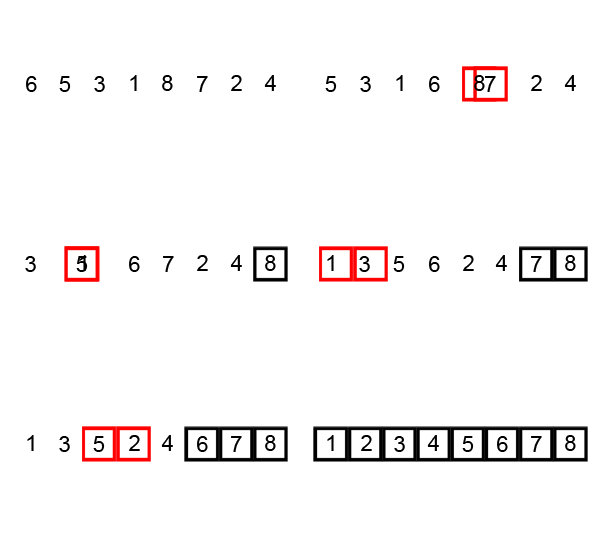
You will implement the sorting algorithm *bubble sort*.
bubble sort [](https://en.wikipedia.org/wiki/bubble sort)
: a sorting algorithm that repeatedly steps through the input list element by element, comparing the current element with the one after it, swapping their values if needed until no swapping is needed.
The larger elements “bubble” up to the top of the list.
Algorithm:
```default
input: array
n = length(array)
repeat
swapping_occurred = false
for i = 1 to n - 1 do
if the pair array[i-1], array[i] is not in order
swap the pair
swapping_occurred = true
until not swapping_occurred
```
Requirements:
1. Implement the function `bubble_sort(char arr, bool (pair_is_in_order*)(char a, char b))`.
The function pointer `pair_is_in_order` determines whether the pair has to be swapped or not.
2. Define two functions which can be used as `pair_is_in_order`:
1. `letters_in_order` that checks if the two given `char`s are in order without case sensitivity. Assume that you will get `a-z` and `A-Z`. Examples
```c
letters_in_order('a', 'b'); // true
letters_in_order('a', 'B'), // true
letters_in_order('b', 'a'); // false
letters_in_order('a', 'A'), // true
```
2. `numbers_ascending`
```c
numbers_in_ascending_order(1, 2); // true
numbers_in_ascending_order(1, 1); // true
numbers_in_ascending_order(1, -1); // false
```
3. Define a function `swap` that can swap two elements of an array. `swap` has two arguments. For example:
```c
char arr[] = {1, 2, 3};
swap(arr[0], arr[2]);
// Now is arr = {3, 2, 1}
```
It is possible to implement `bubble_sort` without `swap`, but we need this function for modularity and to swap more complex objects in future.
4. Your project should contain:
- `main.c` which tests your function with at least the following arrays:
```c
char letter_arr1[] = {'z', 'S', 's', 'a'}`
// aSsz
char number_arr1[] = {4, -1, 2, 9}
// -1, 2, 4, 9
```
- `sort.{c,h}` which includes your implementation
- a flowchart of the algorithm. Use as much natural language as possible but visualize at least the two loops.
# command-line-arguments.html.md
# Command-line interface
command-line interface [](https://en.wikipedia.org/wiki/command-line interface)
: a means of interacting with software via commands. Also called command-line shell.
## `main` arguments
```c
#include
#include
#include
int main(int argc, char *argv[]) {
for (size_t i = 0; i < argc; ++i)
puts(argv[i]);
}
```
```text
$ code-wi/main-arguments.exe geko --1 🦎
code-wi/main-arguments.exe
geko
--1
🦎
```
Three arguments are provided to `main-arguments.exe`. But why do we see 4 lines that are printed?
## Exit status
If `main` returns, then the program exits. The program can communicate a status to the command line interface by returning a corresponding integer called *exit status*.
exit status [](https://en.wikipedia.org/wiki/exit status)
: an integer returned by a terminated program that is made available to its caller, e.g., the command line interface.
Every function with a return type other than `void` must return a value. However, `main` is special. If no return value is not specified, it returns automatically `return 0`:
```c
int main() {}
```
| exit code | meaning |
|-----------------------------|-------------------------------------------------|
| `EXIT_SUCCESS` or 0 | successful termination |
| `EXIT_FAILURE` or 1 | unsuccessful termination |
| any `int` other than {0, 1} | unsuccessful termination with a special meaning |
## CLI design
[Here](https://clig.dev/#help) are good examples for CLI programs.
## VS Code considerations
You cannot use F5 directly, because our program’s runtime is now dependent on arguments. There are two solutions:
1. Only build using CtrlShiftb. Then run manually on the command line:
```sh
./main e caesar LEVE
```
2. You change `launch.json` to cater for command-line arguments, e.g.,
```json
{
"version": "0.2.0",
"configurations": [
{
// ...
"program": "${workspaceFolder}/main",
"args": [
"${input:verb}",
"${input:cipher}",
"${input:plaintext}"
],
// ...
}
],
"inputs": [
{
"id": "verb",
"type": "promptString",
"description": "Enter verb"
},
// ...
]
```
# compiler.html.md
# Compiler
Remember that we have to translate our source code to machine code, to do this, we need to install a *compiler*.
compiler [](https://en.wikipedia.org/wiki/compiler)
: a computer program that translates computer code written in one language into another language
We will use `clang` compiler which is part of the [LLVM](https://llvm.org/) project.
## Installation
1. Go back to the terminal in your editor.
2. Install it using:
### MacOS
```text
brew install llvm
```
### Windows
```sh
winget install martinstorsjo.llvm-mingw.ucrt
```
3. Go back to your editor’s terminal.
4. Check whether `clang` is installed and available in our environment by entering the following command in the terminal of the editor:
```default
clang
```
You should see a message similar as follows:
```text
clang: error: no input files
```
If `clang` does not show the previous message and `clang` cannot be found, try the following in order:
1. Uninstall all LLVM installations using Windows `Add/Remove programs`.
You can also use `winget`, but we have the impression that some packages which were installed with administrator rights fail to be uninstalled when you try with `winget` on a user terminal. Example `winget` command is:
```sh
winget remove "LLVM MinGW (UCRT runtime)"
```
After you have uninstalled all LLVM installations, install the compiler again:
```sh
winget install martinstorsjo.llvm-mingw-ucrt
```
Now close and open your editor and try to compile again. Otherwise try other steps:
2. In this step, we will manually check whether `PATH` environment variable is correct.
First find where the compiler is installed. In Windows, the `martinstorsjo.llvm-mingw-ucrt` package installs the executables including `clang` under the following path:
```text
C:\Users\YOUR_USERNAME\AppData\Local\Microsoft\WinGet\Packages\MartinStorsjo*\llvm-mingw-20*\bin
```
Note the `YOUR_USERNAME` and `*` placeholders, so **do not copy paste** but click through the folder using the file explorer.
The directory path ending with `bin` must be part of the *path* variable in your environment variables. To list and modify your path variable, refer to [Editing the environment variable path](appendix.md#editing-the-environment-variable-path).
3. Probably you or your package manager modified your environment variable `path`, but the editor is not aware of this. Close **all** editor windows and restart your editor.
## Usage
Now compile `main.c` using the following command:
```default
clang main.c
```
You should get no output, which means your source code is compiled to machine code binary `a.exe` on Windows and `a.out` in Linux. You should see it in the `EXPLORER` column.
In Windows, if you get an error during compilation, check whether you have another version of LLVM installed in parallel, for example `llvm.llvm` in winget. You can list installed llvm packages using:
```sh
winget list llvm
```
If it exists, uninstall the package using its name, e.g.:
```sh
winget uninstall llvm.llvm
```
Alternatively you can also uninstall through `Add/remove programs`.
## Configuring PowerShell for rendering special symbols
This is only required in Windows.
On Windows, PowerShell is the default terminal shell software. PowerShell uses a different decoding than the usual UTF so useful symbols like `çäæ😺` are not rendered correctly. To configure UTF support:
1. Start a PowerShell, e.g., using CtrlShift\`
2. We will create a profile, which will be executed each time we open a PowerShell window. For security, Windows prohibits executing any scripts. To allow execution of local scripts execute the following on the shell:
```powershell
Set-ExecutionPolicy -Scope CurrentUser RemoteSigned
```
3. The following creates the folders for the profile file and adds the configuration for UTF output.
```powershell
mkdir (Split-Path -Parent $PROFILE) -Force
@"
[Console]::OutputEncoding = [Text.UTF8Encoding]::UTF8
"@ >> $PROFILE
```
4. Now restart your editor or close all terminals in your editor.
5. You can check the setting using:
```powershell
[Console]::OutputEncoding
```
It should output:
```text
BodyName : utf-8
EncodingName : Unicode (UTF-8)
...
```
## Running your program
On the same terminal, type the following to run your program:
### MacOS/Linux
```default
./a.out
```
### Windows
```default
./a.exe
```
We need to prefix our program with `./`, because your current directory (`.`) is not part of your `path` [by design](https://stackoverflow.com/a/6331085/13870816).
You should see the output `Hello!👋`.
If you do not see `👋` on the terminal, check [Configuring PowerShell for rendering special symbols](#powershell-utf).
## Creating and testing a task
Typing each time commands to the terminal to compile and run our program is not necessary. The editor features [tasks](https://code.visualstudio.com/docs/debugtest/tasks), which can use external programs. We will use tasks to compile our code – or *build* in general – within the editor and then to *run* our program.
1. Try to build your project using CtrlShiftb. You should see `No build task ro run found. Configure Build Task...`.
2. Click on the last message. You should see `Create tasks.json file from template` and other menu items related to settings prefixed with the  gear icon.
3. Select `Create tasks.json...`. You should see different tasks templates including `Others | Example to run an arbitrary external command`
4. Click on `Others ...`. `.vscode/tasks.json` will be created and opened in a new tab. The template defines a task called `echo`.
5. Let us try to run the created template. The task `echo` is not a build task right now, so it cannot be run using the build task.
To run the build task we could use the traditional menu items on the top. Instead, we will use the *command palette*, which makes it possible to search for a menu item.
Press CtrlShiftp. The command **p**alette window should pop up.
6. Type `run task` and then select `Tasks: Run Task`. The window will show many tasks including `echo`.
7. Select `echo`. A new window will show up with `Select for which kind of errors ... to scan the task output`.
Scanning the output is helpful, e.g. for:
1. directly jumping to the error in our source code.
2. to have an overview of issues in our code on the `PROBLEMS` tab (left to the `TERMINAL` tab).
We are not going to use this feature, as we will directly get feedback about our program syntax mistakes on our editor window through the language server `clangd` that we will install later.
8. Click on `Continue without scanning the task output`. A new terminal window prefixed with 🛠️ echo should be opened and it will output `Hello`.
`Hello` comes from the shell command `echo Hello`.
If you don’t get the message, check whether you named your `tasks.json` correctly. I once named it `task.json`, which was not easy to spot.

## Organizing source files under `src`
Create a new folder called `src` in your project folder and move `main.c` in `src` folder. From this point on we will put the `*.c` files in there.
But why? In projects where we have only a single source file, this creates unnecessary directory complexity, so it may seem needless at first. We will introduce later other files like `README.md`, `compile_flags.txt` and even other source files (`*.c`) and header files (`*.h`) later. We don’t want the mix these files we will mostly use with other *meta* files, because working with in a project with many source files will be cumbersome as shown in [Figure 1](#example-of-cluttered-project-directory).
A project has usually *meta* files, which are not exactly project contents (in other words source files) but files *about the project*, e.g., project settings, README, compiler settings, license etc. So we should separate meta files from source files in a project with several files.
## Setting up tasks for compiling & running our code using clang
`echo Hello` in our current `tasks.json` does not compile and run our program. For compiling and running we have to tweak `tasks.json`.
We will set up two different tasks: `build` and `run`
1. Change the `tasks.json` as follows:
```json
{
"tasks": [
{
"label": "build",
"type": "shell",
"command": "clang",
"args": [
"'@compile_flags.txt'", // `'` for Powershell
"./src/main.c",
"-o",
"main"
],
"group": {
"kind": "build",
"isDefault": true
}
},
{
"label": "run",
"type": "shell",
"command": "./main",
"group": {
"kind": "test",
"isDefault": true
},
"dependsOn": [
"build"
],
},
],
"version": "2.0.0",
}
```
What is going on above?
- We separated the compiler command from the arguments using `args` in addition.
- We need additional arguments to the compiler. Instead of writing all arguments in `args`, we will introduce `compile_flags.txt`. `@` means that the following argument contains the file where the compiler flags will be read from.
`'` single quotation marks are required to escape `@` symbol in PowerShell, because [`@` has a special meaning](https://learn.microsoft.com/en-us/powershell/module/microsoft.powershell.core/about/about_splatting).
The main reason for `compile_flags.txt` is the language server *clangd* we will introduce later. Clangd can only read its arguments from `compile_flags.txt`. We will have the compiler arguments for clang and clangd in one file.
- We use `-o main` which sets our program’s name to `main` instead of `./a.(out|exe)`.
- in the `run` task, we use `dependsOn`, so that running the `run` task always builds the project first.
- we set `build` as a build task, and `run` as a test task, because, they are handled differently in VS Code. Moreover we set both tasks as default tasks in their group, which saves an additional click when we want to run these tasks.
2. Now save `tasks.json` and create `compile_flags.txt` with the following content:
```text
-std=gnu2y
-g
-Iinclude
```
In this file we use:
- `-std` option to clang, which stands for C *standard*.
Clang uses and older but stable C standard called `gnu17` as default. We want to try the [latest C features](https://clang.llvm.org/c_status.html) in this course – hence the the option.
- Added `-g` option, which generates additional information which can be useful in a debugging session
3. Run the `run` task by opening the command pallette (shortcut contains p) and searching for `test task`. After running you should get an output similar to in the `Terminal`:
```text
* Executing task: clang @compile_flags.txt main.c -o main
...
```
## Appendix
- [Integrate with external tools via tasks](https://code.visualstudio.com/docs/debugtest/tasks)
- ### clangd automatically compiles the project and populates `Problems` tab, so there is no need for `problemMatcher` in `tasks.json`. Currently I don’t see any purpose for it, but in case there is, you can set it up as follows:
### VSCodium
```json
"label": "build",
// ...
"problemMatcher": {
"pattern": {
"regexp": "^(.*?):(\\d+):(\\d*):?\\s+(?:fatal\\s+)?(warning|error):\\s+(.*)$",
"file": 1,
"line": 2,
"column": 3,
"severity": 4,
"message": 5
}
},
```
### VS Code
A problem matcher is built-in:
```json
"label": "build",
// ...
"problemMatcher": ["$gcc"],
```
- ### `tasks.json` also supports [OS specific properties](https://code.visualstudio.com/docs/debugtest/tasks#_operating-system-specific-properties). If you work in a project group or on multiple OSs, you can use the `windows`, `osx`, `linux`:
```json
{
"tasks": [
{
"label": "run",
"type": "shell",
"group": {
"kind": "test",
"isDefault": true
},
"windows": {
"command": "./a.exe"
},
"osx": {
"command": "./a.out"
},
"linux": {
"command": "./a.out"
},
"dependsOn": [
"build"
],
},
],
"version": "2.0.0",
}
```
# control-flow.html.md
# Control flow
- apply control flow syntax to implement a program
control flow [](https://en.wikipedia.org/wiki/control flow)
: the order in which individual statements are executed
## `if`
```c
if (question1)
action1;
else if (question2)
action2;
else
action3;
```
Question examples:
- *is the time 1?*
- `time == 1`
- *is the temperature lower or equal 20?*
- `temperature <= 20`
Action examples:
- *set the speed to 10*
- `speed = 10`
## Example
In words:
- assume everything is turned off, i.e., `0`
- if `temperature` is greater than 30 then activate `air_conditioner`
- else if `temperature` greater than 25 activate `ventilator`
- else turn everything off.
In code:
```c
if (temperature > 30)
air_conditioner = 1;
else if (temperature > 25)
ventilator = 1;
else { // ️⚠️ Use parantheses if you have multiple actions
air_conditioner = 0;
ventilator = 0;
}
```
## Terms
`if-else-if-else` chain and actions (e.g., `a = 0`) are statements.
statement [](https://en.wikipedia.org/wiki/statement_(computer_science))
: a syntactic unit of a programming language that expresses some action to be carried out
C statements usually end with a semicolon. Example exception: if we have a *compound statement*
compound statement [](https://en.wikipedia.org/wiki/Statement_(computer_science)#Compound_statements)
: a statement that contains sequences of statements
Questions must be expressions.
expression [](https://en.wikipedia.org/wiki/expression_(computer_science))
: syntactic entity in a programming language that may be evaluated to determine its value
Other expression examples:
- `42`
- `a + b`
- `temperature > 30`
Not expressions but statements:
- `temperature = 10;`
- `if (temperature > 30) printf("Hot");`
We have to adhere to this *syntax*, otherwise we get a *syntax error*.
syntax error [](https://en.wikipedia.org/wiki/syntax error)
: a mismatch in the syntax
Can you spot the syntax error in the following example?
```c
if temperature > 30
air_conditioner = 1;
```
## Lunar lander control
# conveyor-belt-capacity-check.html.md
# Conveyor belt capacity check
## Problem

You are going to help automation engineers in your company to determine whether a conveyor belt system can safely transport a collection of packages.
The system can be supported by any number of motors. Every motor is able to carry 5.6 kg of package weight.
Prompt the user for the number of motors by asking:
> How many motors are carrying the packages?
Then, prompt the user for the weight of packages:
> How many kg of packages do we expect?
Do not forget to convert the input values to numeric types.
If the total package weight divided by the number of motors is less or equal than 5.6 (including), then print:
> Yes! The conveyor belt can carry the packages.
Otherwise:
> No. The conveyor belt cannot carry the packages.
Samples:
```default
How many motors are carrying the packages? 3
How many kg of packages do we expect? 10
Yes! The conveyor belt can carry the packages.
```
```default
How many motors are carrying the packages? 2
How many kg of packages do we expect? 20.4
No. The conveyor belt cannot carry the packages.
```
# copying-and-initializing-using-mem-functions.html.md
# Copying and initializing using `mem*` functions
## Copying
```c
#include
#include
#include
#define WIDTH 5
typedef enum { EMPTY, SENTENCE, PHOTO, BOTH } collage_t[WIDTH];
collage_t collage;
/**
* Wants only to write something on the first empty slot
*/
void sentence_friend(collage_t collage) {
for (size_t col = 0; col < WIDTH; ++col)
if (collage[col] == EMPTY) {
collage[col] = SENTENCE;
return;
}
}
/**
* picks a random place and puts both a sentence and a photo.
*/
void creative_friend(collage_t collage) {
for (size_t tries = 0; tries < WIDTH; ++tries) {
size_t col = rand() % WIDTH;
if (collage[col] == EMPTY) {
collage[col] = BOTH;
return;
}
}
}
/**
* Careless friend just overwrites
*/
void careless_friend(collage_t collage) { collage[rand() % WIDTH] = PHOTO; }
int main() {
// FOR DEMO: use debugger to visualize the changes
sentence_friend(collage);
creative_friend(collage);
// You copy the collage for the careless friend
collage_t collage_copy;
for (size_t col = 0; col < WIDTH; ++col)
collage_copy[col] = collage[col];
careless_friend(collage_copy);
// Then you merge the collage_copy into the collage.
}
```
## Initializing
# cryptography.html.md
# Cryptography

You will implement two cryptosystems:
- [Caesar cipher](https://en.wikipedia.org/wiki/Caesar_cipher)
- [Vigenère cipher](https://en.wikipedia.org/wiki/Vigen%C3%A8re_cipher)
## Example run
```text
$ code-prj/crypto/main
Usage:
code-prj/crypto/main MODE ALGORITHM TEXT [KEY]
Modes:
e, encrypt Encrypt the input text
d, decrypt Decrypt the input text
Algorithms:
c, caesar Caesar cipher
v, vigenere Vigenère cipher
Examples:
code-prj/crypto/main e c HELLO
code-prj/crypto/main decrypt v LQVRRBOFTQJ UGLE
```
```text
$ code-prj/crypto/main e caesar LEVERPOSTEJ
OHYHUSRVWHM
```
## Caesar
This cipher shifts each character in a plaintext by three letters forward with a wraparound in the end:
| plain | A | B | C | … | Y | Z |
|---------|-----|-----|-----|-----|-----|-----|
| cipher | D | E | F | … | B | C |
For example encrypting `LEVERPOSTEJ` gives
```default
LEVERPOSTEJ
OHYHUSRVWHM
```
You have to implement two functions:
```c
char *caesar_encrypt(char *plaintext);
char *caesar_decrypt(char *ciphertext);
```
These functions work in-place, in other words, you don’t have to create a new string for the encrypted/decrypted text.
Only alphabetic characters (A - Z) must be processed, others must be left as they are. You can assume that all characters will be uppercase.
## Vigenère
Similar to Caesar, however every character in the plaintext can be shifted by a variable amount. The amount to shift is determined by the *key* of alphabetic characters, where `A` corresponds to 0, `B` 1, etc. There is a wrap-around if necessary like in Caesar.
The *key* is repeated or truncated as necessary. For example if the key is `LEMON`:
```text
Plaintext: ATTACKATDAWN
Key: LEMONLEMONLE
Ciphertext: LXFOPVEFRNHR
```
- The first character `A` encrypted with `L` gives `L`, because `A + L = 0 + 11 = 11 -> L`.
- The third character of the ciphertext is `F` because `T + M = 19 + 12 = 31 -> 5 -> F`
Implement the functions:
```c
char *vigenere_encrypt(char *plaintext, char *key);
char *vigenere_decrypt(char *ciphertext, char *key);
```
You can assume that plaintext:
- is uppercase
- contains no spaces, numbers or punctuation
## Testing
You can use [these tables](https://github.com/stanfordpython/python-assignments/tree/9fd0a2ed8795e4adf5bf19e6f8d4f9228b6ba0a7/assign1/tests) for testing.
## Warm-up activities
Which C syntax features or statements would you use to implement the flowchart?
## Credits
I copied and modified the [assignment materials](https://github.com/stanfordpython/python-assignments/tree/9fd0a2ed8795e4adf5bf19e6f8d4f9228b6ba0a7/assign1) by Parth Sarin, Michael Cooper and Sam Redmond.
# data-input-and-datatypes.html.md
# Data input and datatypes
## Including libraries
We can stand on the shoulder of code that others have written by including libraries. In other words, *reusable code* is packaged into libraries. In C, a library consists of dozens of *header files*. We use an *include directive* to include a header file.
For example, the C standard library includes the standard input output header file `stdio`, that includes functions like `scanf` and `printf`. To make these functions *available to us*, we write:
```c
#include
```
include directive [](https://en.wikipedia.org/wiki/include directive)
: replaces a #include directive line with the content of the file specified
Libraries are typically included in the beginning of a file. This way the code in the included library is available for the whole file.
standard library [](https://en.wikipedia.org/wiki/standard library)
: The library made available across implementations of a programming language, e.g., [C standard library](https://devdocs.io/c/) and [Python standard library](https://docs.python.org/3/library/).
The standard library is like the Swiss knife of a programming language. If you need to implement functionality and this functionality is already available in the standard library, you should prioritize functions in the standard library over implementing yourself.
For example using :
```c
#include
#include
int main() {
time_t now = time(NULL);
printf("Now: %s", ctime(&now));
}
```
## Data input & output on the console
- `scanf`: inputs data by *scanning* from the console
- `printf`: outputs data by *printing* to the console
`f` stands for *formatted*. These functions use a *format string*. A format string uses one or many *format specifiers*.
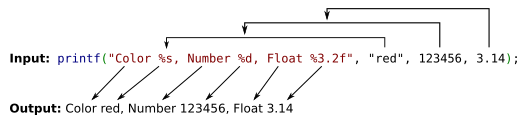
format string
: a string containing placeholders, called format specifiers, which describe how variable text should be displayed.
format specifier [](https://en.wikipedia.org/wiki/Printf#Format_specifier)
: a placeholder that follows the format `%[parameter][flags][width][.precision][length]type`, which describes how data read from a variable should be displayed.
The format string is a template language, e.g.: “%s is %d years old.” includes a string (hence `%s` format specifier) and an integer decimal (`%d`), which could resemble a name and their age. This template can then be filled with data (`printf`) or used to *parse* data from a sentence in this format (`scanf`).
parser [](https://en.wikipedia.org/wiki/parser)
: a software component that takes input data (typically text) and builds a data structure
```c
#include
#define MAX_WORD_LENGTH 120
char word[MAX_WORD_LENGTH];
int number;
int main() {
printf("Enter a word press Enter: ");
scanf("%s", word);
// %s stands for string
// scanf reads the input into the character array `word`
printf("Your message was: %s\n", word);
// This time %s used
printf("Enter an integer number: ");
scanf("%d", &number);
// %d stands for decimal integer
// Use `&` if you read the input into a non-array.
// `&` means *get-the-address* of the variable (instead of only the value)
printf("The square of %d is: %d\n", number, number * number);
puts("Bye!");
// If you don't need to output a variable and need a newline (`\n`), use
// `puts`. `puts` automatically includes a newline.
```
decimal [](https://en.wikipedia.org/wiki/decimal)
: a number that uses the base ten.
The format string is a markup language itself. To see what is possible, refer [here](https://en.wikipedia.org/wiki/Printf#Format_specifier).
## Data types
A computer works with zeroes and ones. These can be interpreted in different ways:
For example, *1110*:
1. four Boolean values (a Boolean can be *true* or *false*): true, true, true, false.
2. an integer: *-1* (uses two’s complement)
3. an unsigned integer: *14*
4. a floating point number: $-1 \cdot 2^{-2} = 0.25$ (its decimal dot can *float* to the right). In this example the dot is shifted two times to the right. First `1` is the sign.
5. as a letter; `0110` binary corresponds to 6 in decimal, so sixth letter: *F*
6. as two letters; second (`01`) and third (`10`) letters in sequence: *BC*
Note that C does not have a built-in type for four bits, so these are just example interpretations and now how C interprets *1110*.
Some C types that are similar to the interpretations above:
1. array of `bool`s
2. `int`
3. `unsigned int`
4. `double` (more precise version of `float`)
5. `char`
6. array of `char`
The main datatype that uses the smallest number of bits is `bool`, even pads seven bits with zeroes, i.e., in `0000_0001`, seven bits on the left of `1` are not used. The reason lies in the architecture of most computers. The smallest bit width a computer can address is one byte.
The next large main datatype after `bool` is `char`, which must have at least 8 bits. So let us see some example interpretations of a byte in C:
```c
#include
char data = 0b1000'0110; // Single quotation mark for better readability
int main() {
printf("byte count: %lu\n", sizeof data);
printf("as int: %hhd\n", data);
printf("as unsigned: %hhu\n", data);
printf("as char: %c\n", data);
}
```
```text
as int: -122
as unsigned: 134
as char: �
```
string
: a sequence of `chars` that ends with a null character
null character [](https://en.wikipedia.org/wiki/null character)
: a non-visible character with the value zero
We define a string using double quotes (`"`) and a `char` using single quotes (`'`). If we use `"`, then a null character is automatically added to the end of the letters we write. When `printf` reads a string, it reads character by character, until a null character is reached.
Both variables generate the same output:
```c
#include
char msg_as_str[] = "bye!";
char msg_as_array_of_chars[] = {'b', 'y', 'e', '!', '\0'};
int main() {
puts(msg_as_str);
puts(msg_as_array_of_chars);
}
```
Refer to [this table about main datatypes](https://en.wikipedia.org/wiki/C_data_types#Main_types) for:
1. all main types
2. their format specifiers
Select datatypes for the following variables:
- human height in meters
- number of people in a city
- door is open or not
- price of a product in EUR
- capacity of a modern hard-disk in bytes
- gender: divers, female, male
## Arguments and return value in functions
These act like input and output to a function.
Functions can have zero, one or many *arguments* and one *return value*. Usually arguments are used as input and the return value as output, but it is also possible to input *addresses* instead of *values*. If we input an address, then a function can use an argument to output values.
Examples:
| function | arguments | return value |
|-----------------------------|----------------------------------------------------------------|------------------------------------------------------|
| `printf("Hej Geko 👋");` | `"Hej Geko 👋"`: *string* | 13: int (9+4 bytes written) |
| `scanf("%d %u", &n1, &n2);` | `%d`: format string: *string*, `&n1`: *int*, `&n2`: *unsigned* | number of successfully matched items, e.g., 2: *int* |
| `rand();` | none | random number: *int* |
`&n1` means *the address* of the variable `n1`.
If we use a function in a wrong way, we get an error:
```c
int matched_item_count = scanf();
```
Output of clangd in the editor:
```text
Too few arguments to function call, at least argument '__format' must be specified
```
Fortunately, our IDE pings us already while we write code:

## Conversion between datatypes
`printf` converts many datatypes to strings, and `scanf` converts vice-versa. We can also a non-string datatype to another non-string datatype:
```c
#include
#include
int main() {
// Implicit conversion (safe, no data loss)
// Small numeric types → larger numeric types
int wholeNumber = 42;
double bigNumber = wholeNumber; // implicit
printf("%f\n", bigNumber); // 42.000000
// Implicit conversion – we may lose data
double piDouble = 3.14159;
int piInt = piDouble; // truncates to 3 (we lost data)
printf("%d\n", piInt);
// String to numbers
char temperature_str[] = "23.45";
double temperature = strtod(temperature_str, NULL);
printf("%f\n", temperature); // 23.450000
char age_str[] = "23";
unsigned age = strtoul(age_str, NULL, 10);
printf("%u\n", age); // 23
}
```
Why do we use strings and numeric datatypes? Can’t we just use only strings or numeric datatypes?
## Math expressions
```c
int a = 5;
int b = 2;
int sum = a + b; // 7
int diff = a - b; // 3
int product = a * b; // 10
int quotient = a / b; // 2
int remainder = a % b; // 1
double x = 5.0;
double y = 2.0;
double quotient2 = x / y; // 2.5
```
Come up with an example where any of the math expressions be useful in Conveyor Belt Capacity Check problem?
## Using variables and constants
```c
// First define a variable
int age = 30;
// Then use it (`age`)
if (age > 30)
printf("Crisis?");
// Constants
// Convention: CAPITAL letters
const double PI = 3.1415926535;
```
We don’t have to use `const` for functionality, but we humans make mistakes and this extra information lowers the chance of a mistake later. The compiler will warn us if we try to change the variable.
## Program structure
`main()` is where your program starts.
```c
#include
// Variables
int time;
int main() {
puts("Welcome to the time machine 👋");
time += 10;
printf("Now the time is: %d\n", time);
}
```
## Back to the problem
## Appendix
- `fgets` can also read input from the console. I chose to introduce `scanf` first, which can convert string to other datatypes.
- `scanf` may overflow during scanning of input, if the user types more characters than the size of the buffer. A secure practice is to use `fgets` which reads a limited number of characters and then use `sscanf` on the buffer. We will introduce security aspects later.
# data-locality.html.md
# Data locality
One of the questions in [Exercise 53](balls-and-their-admirers.md#how-do-we-simulate-moving-shapes) was about the trade-offs of different data structures, e.g., array vs struct.
How far data is placed from each other can affect performance.
## Array of structs vs struct of arrays
```c
#include
#include
#include
#define N 1'000'000
// Array of Structs (AoS)
typedef struct {
int x;
int y;
int z;
} PointAoS;
PointAoS points_aos[N];
// Struct of Arrays (SoA)
typedef struct {
int x[N];
int y[N];
int z[N];
} PointSoA;
PointSoA points_soa;
void initAoS() {
for (int i = 0; i < N; i++) {
points_aos[i].x = rand();
points_aos[i].y = rand();
points_aos[i].z = rand();
}
}
void initSoA() {
for (int i = 0; i < N; i++) {
points_soa.x[i] = rand();
points_soa.y[i] = rand();
points_soa.z[i] = rand();
}
}
int sum_x_aos() {
int sum = 0;
for (int i = 0; i < N; i++) {
sum += points_aos[i].x; // x's are more far from each other
}
return sum;
}
int sum_x_soa() {
int sum = 0;
for (int i = 0; i < N; i++) {
sum += points_soa.x[i]; // x's are more nearby
}
return sum;
}
int main() {
srand(time(NULL));
initAoS();
auto start = clock();
int sum_aos = sum_x_aos();
auto end = clock();
printf("AoS sum: %d, time: %f ms\n", sum_aos,
((double)(end - start) / CLOCKS_PER_SEC) * 1000);
initSoA();
start = clock();
int sumSoA = sum_x_soa();
end = clock();
printf("SoA sum: %d, time: %f ms\n", sumSoA,
((double)(end - start) / CLOCKS_PER_SEC) * 1000);
}
```
Output on my computer:
```default
AoS sum: -893370230, time: 1.249000 ms
SoA sum: 863692085, time: 0.674000 ms
```
Output on the cloud server:
```c
AoS sum: 1014830645, time: 2.450000 ms
SoA sum: 1027665057, time: 2.436000 ms
```

Struct of arrays achieve a better performance, because x’s are near each other.
## Appendix
This is related to how memory is organized in processors.
cache [](https://en.wikipedia.org/wiki/Cache (computing))
: a hardware of software component that stores data so that future requests for that data can be served faster
# debugger.html.md
# Running and debugging
Typing each time commands to the terminal to compile and run our program is not necessary. Many IDEs feature a shortcut like F5 which combines compilation and inspection of our program. The latter is a natural process of program development, because we engineers make errors and introduce so called *bugs* into our program.
debugging [](https://en.wikipedia.org/wiki/debugging)
: the process of finding the root cause, workarounds, and possible fixes for bugs.
bug [](https://en.wikipedia.org/wiki/bug)
: a design defect in an engineered system
In this section we will install and configure extension [CodeLLDB](https://github.com/vadimcn/codelldb), which uses the [LLDB debugger](https://lldb.llvm.org/) that is part of the clang project. Then we will create a [debug configuration](https://code.visualstudio.com/docs/debugtest/debugging-configuration) that will be used upon F5.
## Installing CodeLLDB
1. Install `CodeLLDB` extension from the author `vadimcn` in the editor.
2. Click on `Restart Extensions`
## Creating a launch configuration
#### WARNING
If the following steps do not work, skip these and create `launch.json` by creating a new file and copy pasting the content at the end of this section.
Details [here](https://github.com/vadimcn/codelldb/issues/1310).
So let us add a configuration which will describe what happens if we press F5.
1. Go back to `main.c` tab.
2. Press F5. You should see a popup window stating `Cannot start debugging because no launch configuration has been provided.`.
3. Click `OK`. A `launch.json` will be created in your project folder under `.vscode` folder. It will contain the configuration documented [here](https://github.com/vadimcn/codelldb/blob/master/MANUAL.md#starting-a-new-debug-session).
4. `configurations` contains a configuration named `Debug`. Our executable program should be assigned to `program`.
Now substitute the name of your program for ``. If you cannot remember it, take a peek [to the previous section where we compiled and run our program](compiler.md#running-your-program).
5. We want to work in an edit, debug cycle, however our launch configuration is not aware of the fact that our program must be compiled before running and debugging. So add the following line to your configuration so that the default build task is executed before debug:
```default
"preLaunchTask": "${defaultBuildTask}",
```
6. You can remove `cwd` (current working directory) line, because we will use the default setting.
After these changes, your `launch.json` should look like this without the comments on the top *for Windows*. Change `a.exe` to `a.out` for other operating systems.
```json
{
"configurations": [
{
"type": "lldb",
"request": "launch",
"name": "Debug",
"program": "${workspaceFolder}/main",
"args": [],
"preLaunchTask": "${defaultBuildTask}",
}
],
"version": "0.2.0",
}
```
Debugging takes care of running our program. Our default build task builds our program without running. That is the reason why we specified `${defaultBuildTask}`.
In the next section, we will try our configuration. You don’t have to save `launch.json`. Project files are typically saved when you press F5.
## Starting a debug session
1. Click on the tab `main.c`.
2. Press F5. `Run and debug` bar will be activated. Additionally, you should see some output in the `Debug console` below as follows:
```text
...
Process exited with code 0.
```
And in the terminal the hello message.
1. Symptom: You get an error, e.g., `${defaultBuildTask} not found`.
Solution: Check if you have CodeLLDB extension installed.
2. Symptom: You start a debugging session, but it starts not the program that you have open in your editor.
Solution: Pay attention [your directory hierarchy is correct](editor.md#creating-and-opening-a-new-folder). You must **open the parent directory of the project** and not the directory above the parent directory.
Also pay attention that you don’t have two projects open in your workspace.
Now you can edit your code and run & debug it again and again in cycle.
Debugger can also inspect our code by placing red *breakpoints*, which we will introduce later. For now, we will use the debugging feature for a convenient way of compiling and running our code.
## Appendix
- [CodeLLDB manual](https://github.com/vadimcn/codelldb/blob/master/MANUAL.md)
- [`launch.json` reference](https://code.visualstudio.com/docs/cpp/launch-json-reference)
# different-types-of-const-in-pointers.html.md
# Different types of `const` in pointers
The keyword `const` can be used on two different places in a pointer declaration.
```c
const char *const LICENSE = "CC BY-SA 4.0";
// `*` means a pointer, or in other words, memory address instead of value.
// So, `LICENSE` is a pointer to a `char`.
// `const char` makes each character read-only (1. const).
// `*const` means a read-only pointer, `LICENSE` cannot be assigned to something
// else (2. const).
```
Above example does not make sense. We can define such a fixed string better as:
```c
const char LICENSE[] = "CC BY-SA 4.0";
```
We typically use pointers, if we want to point to somewhere else during runtime. So when would we use a constant pointer (`*const`)?
I got the following answer from `moonshotai/kimi-k2-instruct`:
```c
typedef struct {
const char *const name;
uint32_t value;
} rom_item_t;
static const rom_item_t rom_table[] = {
{ .name = "baud", .value = 115200 },
{ .name = "parity", .value = 0 },
};
```
Above example cannot be implemented with a flexible array:
```c
typedef struct {
const char name[]; /* ❌ illegal: flexible array not at end */
uint32_t value;
} rom_item_t;
```
# do-while.html.md
# `do while`
There are two possibilities to loop over a block:
You want to integrate an email input field with input validation in your program, e.g., there must be an `@` in the input string. Which one fits better ?
# editor.html.md
# Editor
In the following I list the steps to setup an environment based on *VSCodium*, which is based on the popular text editor Visual Studio Code (VS Code). The following instructions should also work with VS Code, though.
Even both are open source, I prefer VSCodium, because the default extension store used by VS Code (Marketplace) [contains popular extensions by Microsoft that may only be used with VS Code](appendix.md#why-i-chose-vscodium-over-vs-code). For example GitHub Copilot is only available for VS Code.
A text editor is not enough to create programs executable by our computer. Along with the text editor we will install additional tools like *compiler*, *language server* etc.
For the following tutorial I used a computer with an Intel x86-64 bit processor with Windows 11 OS build 26100. This information can be found to `System Information`.
Even I tried to cater for other processors and OSs, I did not test the steps on other hardware/OS, which I don’t have access to.
If the following steps do not work out for you, we can find a solution in the class. If you miss something in the steps or found an error, please create an [issue](https://gitlab.com/fpga-lab/c-programming/-/issues) or a pull request to help other students.
## Download & installation
### VSCodium Windows
```default
winget install vscodium
```
### VSCodium on MacOs and Linux
Refer to [these instructions](https://vscodium.com/#install).
### VS Code Windows
```default
winget install Microsoft.VisualStudioCode
```
### VS Code MacOS
```default
brew install --cask visual-studio-code
```
## Customizing the editor
1. When you run for the first time, you should see a walkthrough for getting started.
2. First pick a theme that fits your environment and your taste. [A study](https://doi.org/10.1111/tgis.13038) found out that a light theme is best in a well-lit environment during the day, and dark during the night.
I like `Solarized Light`, because complete white strains my eyes. You can find it when you click on `Browse Color Themes` button or `See more themes`.
After choosing your theme you should see a ✅ beside `Choose your theme`.
3. We will leave the walkthrough without visiting other steps. We will setup other tools when we need them to understand why we need them. Click on `Go Back` on the top left corner of the tab to discard the walkthrough window. You should see the `Welcome` tab.
## Creating and opening a new folder
Now we will write our first program. For each program we will code, we will use a single folder. During the semester you will write also many other programs. So think about where you will place your folder.
Now we will create the folder `hello` for our first program.
1. On the `EXPLORER` tab, click on `Open Folder`. The file explorer should pop up.
2. Create the folder structure that you like as we discussed before and then `hello`.
3. In the file explorer, click on `hello` and then `Select folder`. A new window should pop-up with the title `Do you trust the authors of the files in this folder?`.
4. We can trust the folder, because there is nothing we should be suspicious of. You can read about trust [here](https://code.visualstudio.com/docs/editing/workspaces/workspace-trust).
Tick the box for `Trust the authors of all files in the parent folder 'code'` and click on `Yes ...`. You should see your folder open but empty on the `EXPLORER` tab on the left.
5. Hover or click with your mouse on the `EXPLORER` tab on the left. You will see the icons , , , .
6. Click on  `New File...`. A file name prompt will be activated.
7. Enter `main.c`. In C, the root source file is named `main.c` by convention. Why? You will understand in the next steps. After the prompt `main.c` will be opened in a new tab.
8. One of the most basic things we can do with a program is to output some characters to us — this is a way of communication between the program and us. Let us do that. Write the following code by hand to get the feeling of different symbols used in C language syntax.
```c
#include
int main() { puts("Hello!👋"); }
```
9. Before you save, pay attention to the `main.c` in the tab’s title. You should see a full circle similar to ⚫. This means that the file is not saved. Now save it using Ctrls. The circle should turn to a cross mark similar to ❎.
We have written code to control the behavior of a computer. This is called *source code*.
source code [](https://en.wikipedia.org/wiki/source code)
: a plain text computer program written in a programming language
## Running source code using the terminal
Let us try to execute our code. We usually start programs by double-clicking on them in the file explorer. We will use another approach — using the *terminal*.
1. Press CtrlShift\`. A new window should open in the bottom of the editor with `TERMINAL` activated.
On Windows it should show something similar to:
```text
PS C:\Users\user\...\hello>
```
2. To execute it, write:
```sh
./main.c
```
and press Enter. What happened? Did you see any output, e.g., *Hello!*?
- on Windows: You will probably see that the operating system focus changes again to the editor tab with `main.c` — the same behavior that you would expect when you double-click on the file.
- on Linux, macOS: You will probably see an error message that you don’t have the permission to execute the file.
`main.c` is a source code and is in a human-readable format. It is not meant to be executed by the computer. Computer only understands *machine code*, so we have to translate our code first.
machine code [](https://en.wikipedia.org/wiki/machine code)
: code consisting of machine language instructions
Why did we use a terminal to start our program, which feels primitive compared to a more graphical interface? Reason: In this course we will focus on programs that input and output data using a *text terminal*, or in short *terminal* and creating programs for the terminal are less complex than programming a graphical program as a beginner.
text terminal [](https://en.wikipedia.org/wiki/text terminal)
: a serial computer interface for text entry and display
# enumerated-type.html.md
# Enumerated type
```c
enum { ON, OFF, BLINKING } led_state;
typedef enum { RED, GREEN, BLUE, LEDOFF } Color;
Color led_color_top = BLUE, led_color_right = LEDOFF;
Color led_color_bottom = OFF;
// Even `OFF` does not belong to the `Color`, C does not warn. 😕
// These identifiers behave like constants.
typedef enum { CLUBS, DIAMONDS, HEARTS, SPADES, SUIT_COUNT } CardSuit;
// `SUIT_COUNT` is an idiom to automatically get the number of enumerated values, in case we need to use it in our code
CardSuit cards[13];
typedef enum { LOW = 10, MEDIUM = 50, HIGH = 100 } SensorLevel;
```
Using `typedef` we can use our enumeration as a type and declare variables somewhere else than in the global declaration area.
enumerated type [](https://en.wikipedia.org/wiki/enumerated type)
: a data type consisting of a set of named values called *enumerators* of the type. The enumerator names are usually identifiers that behave as constants.
# filter-csv-by-age.html.md
# Filter CSV by age
Implement a program that filters people by age from a dataset.
Input data is a comma-separated values (CSV) file. If there is a row which does not contain two columns, then output an error message.
Comma-separated values [](https://en.wikipedia.org/wiki/Comma-separated values)
: plain text data format for storing tabular data where the values of a record are separated by a comma and each record is a line.
Milestones:
1. First begin by processing `people-with-age.csv` line by line. If you encounter a blank line, then warn the user, but continue processing by printing the non-blank lines.
```sh
./main.exe 15 people-with-age.csv
```
2. Parse one line into tokens and filter by age
3. Recognize the three different malformed lines
1. Whole line missing
2. Age missing (no token)
3. Age not recognized (token cannot be converted to a number)
4. Support output to a file
```default
./main.exe people-with-age.csv out.csv
```
5. Also support reading the input from `stdin` as follows:
### Powershell
```powershell
"Anna, 12" | ./main.exe 15
```
### Linux
```sh
echo "Anna, 12" | ./main.exe 15
```
`people-with-age.csv`:
```text
Nuvi Våle, 18
Aeral Körn
Lumio Satō, 29
Veski Ruañ, 12
```
The output file must not contain any error messages.
```c
#include
#include
#include
#define LINE_MAX 100
#define DELIM "," // CSV delimiter
char *ifile, *ofile;
unsigned filter_age_max;
FILE *istream, *ostream;
const char USAGE[] =
R"(Filters CSV rows, keeping only those with provided maximum age
%1$s max-age [input-file] [output-file]
Example:
%1$s max-age 17 input.csv output.csv
%1$s max-age 10 input.csv (outputs to stdout)
%1$s max-age 54 (inputs from stdin, outputs to stdout)
)";
void filter_stream(FILE *istream, FILE *ostream) {
char line[LINE_MAX];
char *fgets_return;
char *name, *age_str;
size_t line_no = 0;
while (
// Read a line from `istream` and assign the return value to
// `fgets_return`
// YOUR CODE HERE
) {
++line_no;
if (fgets_return && *fgets_return != '\n') {
if (strlen(line) > 1) {
// Assign `name` and `age_str` using `strtok`
// YOUR CODE HERE
// Alternative to strtok:
// sscanf(line, "%*[^,],%d", &age);
if (!age_str) {
// Error message
// YOUR CODE HERE
continue;
}
}
} else {
// Error message
// YOUR CODE HERE
continue;
}
// Age processing
unsigned age;
auto recognized_count = sscanf(age_str, "%d", &age);
if (recognized_count == 1) {
if (age <= filter_age_max) {
// Forward input line to `ostream`
// YOUR CODE HERE
}
} else {
// Error message
// YOUR CODE HERE
}
}
}
int main(int argc, char *argv[]) {
switch (argc) {
case 4:
// max-age ifile ofile
ofile = argv[3];
case 3:
// max-age ifile
ifile = argv[2];
case 2:
// max-age
if (!sscanf(argv[1], "%d", &filter_age_max)) {
puts("First argument is not an age.");
exit(EXIT_FAILURE);
}
break;
default:
printf(USAGE, argv[0]);
return EXIT_SUCCESS;
}
if (ifile) {
// Open `ifile` and assign it to `istream`
// YOUR CODE HERE
// Exit program with an error message if file cannot be opened
// YOUR CODE HERE
} else {
// Set `istream` if no file provided
// YOUR CODE HERE
}
if (ofile) {
// Open `ofile` and assign it to `ostream`
// YOUR CODE HERE
// Exit program with an error message if file cannot be opened
// YOUR CODE HERE
} else {
// Set `ostream` if no file provided
// YOUR CODE HERE
}
filter_stream(istream, ostream);
}
```
Requirements:
- Deliver a very general flowchart where at least the line by line processing is visible, but not how each error is recognized.
Some concepts used from previous chapters:
- Section [main arguments](../week05/command-line-arguments.md#main-arguments)
# flowcharts.html.md
# Flowchart
- translate a process into a flowchart
## Mission: Safe landing
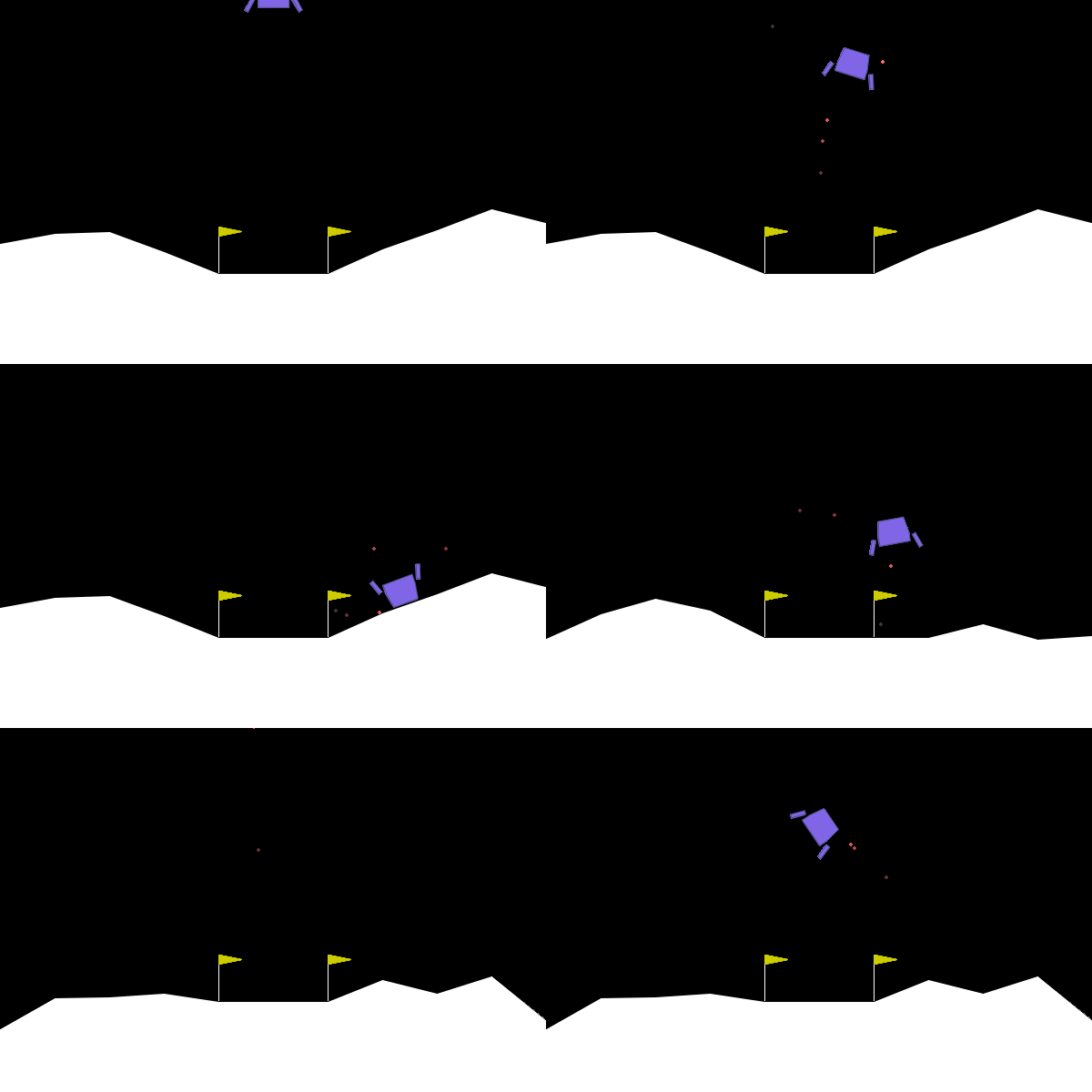
Problems:
- limited fuel 🌡️
- crash if high speed 💥
How do we control ❓
## Flowchart
We can use flowcharts to represent the process of safe landing.
flowchart [](https://en.wikipedia.org/wiki/flowchart)
: a type of diagram that represents a workflow or process
Main symbols:
#### Meanings of shapes
| name | shape |
|-----------------|-----------------------------------------------------------------------------------------------------|
| process | ▯ (rectangle) |
| decision | ◇ (diamond) |
| start or ending |  (rounded rectangle) |
If you heard of [activity diagrams](https://en.wikipedia.org/wiki/Activity_diagram): Flowcharts are a basic form of them.
## Appendix
- [What do the different flowcharts mean?](https://www.rff.com/flowchart_shapes.php)
- flowchart-based programming environments — compared to only drawing, you can run your flowcharts
- [Raptor](https://raptor.martincarlisle.com/)
- [Flowgorithm](http://www.flowgorithm.org)
- [Diagramo](http://diagramo.com/editor/editor.php)
- another flowchart editor, but does not seem to be maintained since 2014.
# for-loop.html.md
# `for` loop
for loop [](https://en.wikipedia.org/wiki/for loop)
: a structured control flow statement that repeatedly runs a section of code until a condition is satisfied.
A `for` can be rewritten to a `while` and vice-versa. The difference: `for` can declare throwaway variables in its `init` field, which can be used to iterate (i.e., navigate) over a data structure:
```c
#include
char arr[3] = {'a', 'b', 'c'};
int main() {
for (size_t i = 0; i < _Countof(arr); ++i)
putc(arr[i], stdout);
// `i` is not available anymore
}
```
```c
#include
char arr[3] = {'a', 'b', 'c'};
int main() {
{ // Create new scope to imitate `for`
size_t i = 0;
while (i < _Countof(arr)) {
putc(arr[i], stdout);
++i;
}
// `i` is still available
}
// `i` not available anymore
}
```
For example, both code describe the same behavior, but in the right code,
# format-specifiers-d-vs-i-in-printf.html.md
# Why do I prefer the format specifier `%d` over `%i` in `printf`?
You can also use `%i` for printing integer numbers, which may sound more intuitive, because it begins with *i*. Most C code uses `%d` however, because in `scanf`, `%d` and `%i` have a subtle difference. `%d` only reads decimal numbers, but `%i` can read other bases like octal and hexadecimal as well. So even `%i` and `%d` have the same meaning in `printf`, I would use `%d` for consistency between `scanf` and `printf` format strings.
```c
#include
#define INPUT_STRING_SIZE 10
void parse(char parsed_string[], char format_specifier[]) {
int number;
int parsed_argument_count = sscanf(parsed_string, format_specifier, &number);
// scanf reads from the keyboard, but sscanf reads from a string.
// We use sscanf to avoid keyboard entry
printf("Parsing %s using %s\n", parsed_string, format_specifier);
printf("Number of successfully parsed arguments: %d\n",
parsed_argument_count);
printf("Read data as decimal integer: %d\n", number);
puts("");
}
int main() {
parse("-0xf", "%d");
parse("-0xf", "%i");
parse("-0b1111", "%d");
parse("-0b1111", "%i");
}
```
```text
Parsing -0xf using %d
Number of successfully parsed arguments: 1
Read data as decimal integer: 0
Parsing -0xf using %i
Number of successfully parsed arguments: 1
Read data as decimal integer: -15
Parsing -0b1111 using %d
Number of successfully parsed arguments: 1
Read data as decimal integer: 0
Parsing -0b1111 using %i
Number of successfully parsed arguments: 1
Read data as decimal integer: -15
```
# frankentext.html.md
# FrankenText

We will write a program that generates random sentences based on the book [Frankenstein](https://www.gutenberg.org/ebooks/84) by Mary Shelley.
We will create tokens from the text and create a table that tracks which tokens come after which token.
token [](https://en.wikipedia.org/wiki/Lexical_analysis#Token)
: A piece of a string.
The algorithm is as follows:
1. Embed the book into a string.
2. Replace each non-printable character with a space
3. Read tokens delimited by “ ?!” and store them in an array named `tokens`.
At the same time update a successor table that tracks which token depends on which token (`succs`).
There must be no copy of a token in the array and tokens are case-sensitive.
`ruin!` and `ruin` are different tokens.
4. Generate random sentences:
Select a random token that starts with a capital letter and continue appending random successors from the successor table until we encounter a token that ends a sentence.
Example output:
> RIGHT OF DAMAGES - You can be done, nearly dark, and my resolution to intrude?
> My papa is now Elizabeth was spent cheerfully; and, after this discovery, he worked other customs of man!
The sentences generated may not make a lot of sense, but the words are not completely random.
## Word and successor tables
The program tracks `tokens` and successors of each token in the successor table `succs`. For example for the following text:
> The modern the modern apes!
produces the following `tokens` and successor table `succs`:
| 0 | “The” |
|-----|----------|
| 1 | “modern” |
| 2 | “the” |
| 3 | “apes!” |
| 0 | {“modern”} |
|-----|------------------|
| 1 | {“the”, “apes!”} |
| 2 | {“modern”} |
| 3 | |
## Template
Before using the template, download the plain-text version of the book using the following link:
[https://www.gutenberg.org/ebooks/84.txt.utf-8](https://www.gutenberg.org/ebooks/84.txt.utf-8)
Some of the functionality is already provided and we will live-program some of the functionality.
```c
#include
#include
#include
#include
#include
#include
#define MAX_WORD_COUNT 15'000
#define MAX_SUCCESSOR_COUNT MAX_WORD_COUNT / 2
char book[] = {
#embed "pg84.txt" /// Stores the content of the file as an array of chars.
, '\0'}; /// Makes `book` a string.
/// Array of tokens registered so far.
/// No duplicates are allowed.
char *tokens[MAX_WORD_COUNT];
/// `tokens`'s current size
size_t tokens_size = 0;
/// Array of successor tokens
/// One token can have many successor tokens. `succs[x]` corresponds to
/// `token[x]`'s successors.
/// We store directly tokens instead of token_ids, because we will directly
/// print them. If we wanted to delete the book, then it would make more sense
/// to store `token_id`s
char *succs[MAX_WORD_COUNT][MAX_SUCCESSOR_COUNT];
/// `succs`'s current size
size_t succs_sizes[MAX_WORD_COUNT];
/// Overwrites non-printable characters in `book` with a space.
/// Non-printable characters may lead to duplicates like
/// `"\xefthe" and "the"` even both print `the`.
void replace_non_printable_chars_with_space() {
// YOUR CODE HERE
}
/// Returns the id (index) of the token, creating it if necessary.
///
/// Returns token id if token exists in \c tokens, otherwise creates a new entry
/// in \c tokens and returns its token id.
///
/// \param token token to look up (or insert)
/// \return Index of `token` in \c tokens array
size_t token_id(char *token) {
size_t id;
for (id = 0; id < tokens_size; ++id) {
if (strcmp(tokens[id], token) == 0) {
return id;
}
}
tokens[id] = token;
++tokens_size;
return id;
}
/// Appends the token \c succ to the successors list of \c token.
void append_to_succs(char *token, char *succ) {
auto next_empty_index_ptr = &succs_sizes[token_id(token)];
if (*next_empty_index_ptr >= MAX_SUCCESSOR_COUNT) {
printf("Successor array full.");
exit(EXIT_FAILURE);
}
succs[token_id(token)][(*next_empty_index_ptr)++] = succ;
}
/// Creates tokens on \c book and fills \c tokens and \c succs using
/// the functions \c token_id and \c append_to_succs.
void tokenize_and_fill_succs(char *delimiters, char *str) {
// YOUR CODE HERE
}
/// Returns last character of a string
char last_char(char *str) {
// YOUR CODE HERE
}
/// Returns whether the token ends with `!`, `?` or `.`.
bool token_ends_a_sentence(char *token) {
// YOUR CODE HERE
}
/// Returns a random `token_id` that corresponds to a `token` that starts with a
/// capital letter.
/// Uses \c tokens and \c tokens_size.
size_t random_token_id_that_starts_a_sentence() {
// YOUR CODE HERE
}
/// Generates a random sentence using \c tokens, \c succs, and \c succs_sizes.
/// The sentence array will be filled up to \c sentence_size-1 characters using
/// random tokens until:
/// - a token is found where \c token_ends_a_sentence
/// - or more tokens cannot be concatenated to the \c sentence anymore.
/// Returns the filled sentence array.
///
/// @param sentence array what will be used for the sentence.
//
// Will be overwritten. Does not have to be initialized.
/// @param sentence_size
/// @return input sentence pointer
char *generate_sentence(char *sentence, size_t sentence_size) {
size_t current_token_id = random_token_id_that_starts_a_sentence();
auto token = tokens[current_token_id];
sentence[0] = '\0';
strcat(sentence, token);
if (token_ends_a_sentence(token))
return sentence;
// Calculated sentence length for the next iteration.
// Used to stop the loop if the length exceeds sentence size
size_t sentence_len_next;
// Concatenates random successors to the sentence as long as
// `sentence` can hold them.
do {
// YOUR CODE HERE
} while (sentence_len_next < sentence_size - 1);
return sentence;
}
int main() {
replace_non_printable_chars_with_space();
char *delimiters = " \n\r";
tokenize_and_fill_succs(delimiters, book);
char sentence[1000];
srand(time(nullptr)); // Be random each time we run the program
// Generate sentences until we find a question sentence.
do {
generate_sentence(sentence, sizeof sentence);
} while (last_char(sentence) != '?');
puts(sentence);
puts("");
// Initialize `sentence` and then generate sentences until we find a sentence
// ending with an exclamation mark.
do {
generate_sentence(sentence, sizeof sentence);
} while (last_char(sentence) != '!');
puts(sentence);
}
```
## Notes
#### WARNING
On Windows: If you increase `MAX_WORD_COUNT` to `50'000`, then debugging fails with an unknown error.
#### NOTE
We don’t copy strings from `book`, but work with pointers to the `book`.
## Requirements
1. You only fill `// YOUR CODE HERE` parts.
2. Include example output of your program in your documentation.
3. Flowchart
## Appendix
- We actually create a [Markov chain](https://en.wikipedia.org/wiki/Markov_chain).
# further-minimization-ideas-rpsls-resolution-logic.html.md
# Further minimization on RPSSL resolution logic
### We can further reduce the number of tests 🤓.
By:
1. only thinking in forwards steps on the resolution circle
2. changing the layout of the shapes so that we win against the two shapes in front (and lose against two behind)
## Describing the difference only as positive numbers
There is a “mathematical world” where the following number pairs have the same meaning:
- -4 and 1
- -2 and 3
- -1 and 4
If we operate in this world, we can describe our solution in a shorter way.
Which mathematical operator could be helpful to land in this mathematical world described above?
Hint: Check [this section](../week02/data-input-and-datatypes.md#math-expressions).
This operation basically gets rid of the negative steps and converts them to positive steps on a circle.
We get:
| p2-p1 mod 5 | p1 … |
|---------------|--------|
| 0 | tie |
| 1 or 3 | wins |
| 2 or 4 | loses |
This table is shorter than [the rock paper scissors table](../week04/rpssl-resolution-logic.md#rps-long-table) and much shorter than the rock paper scissors lizard Spock table.
This table can be implemented as an `if-if else-else` statement or `switch` using the following Boolean expressions in order after calculating `diff = (p2 - p1) mod 5`.
1. `diff == 0`
2. `diff == 1 || diff == 3`
So we have three comparisons in total.
## Moving shapes in the circle to get rid of holes
We need three comparisons to check which player wins. We would only need two comparisons if the condition for winning would be `1 or 2` instead of `1 or 3`, because then we only have to test for `diff <= 2`.
Can we change the id of the shapes accordingly so that we get the described behavior?
The [resolution table](../week04/rpssl-resolution-logic.md#rpsls-resolution-diagram) is symmetrical. Every shape wins against two other shapes and loses against two others. So it should be possible to put the shapes that one shape wins/loses against in front:
In the graph above, `a` wins against `b` and `c`; and loses against `d` and `e`. Every node wins against two in front and loses against two behind.
So if we begin with 🪨 as `a`, then:
1. `b` and `c` must be 🦎 and ️✂️.
2. At the same time `b` must win against `c`, so `b` must be ✂️ and `c` 🦎.
3. If `b` is ✂️, then `d` must be 🗒️.
4. Finally `e` gets the remaining 🖖
Ultimately we get the following table.
| p2-p1 mod 5 | p1 … |
|---------------|--------|
| 0 | tie |
| <= 2 (1 or 2) | wins |
| else (3 or 4) | loses |
## Modulo with negative operands
Modulo operator is implemented using the `%` operator in C. However it behaves differently than you would expect as you have seen in [Exercise 76](#modulo-in-c-and-python).
C and Python make sure that the following equation holds for a dividend `d` and divisor `v`, where both variables are integers.
$$
\frac{d}{v} \cdot v + (d\mod{v}) = d
$$
This equation corresponds to:
$$
\mathrm{quotient} \cdot \mathrm{divisor} + \mathrm{remainder} = \mathrm{divisor}
$$
So if we divide $d$ with $v$ using integer division, we should be able to get the original dividend using the remainder $d\mod{v}$ and divisor $d$.
The integer divisions used by programming languages can be different, which calls for different kinds of modulo to fulfill the equation above.
… integer division uses *floored division* $q = \left\lfloor\frac{a}{n}\right\rfloor$. So, if the quotient is negative the result is rounded towards negative infinity.

… integer division uses *truncated division* $q = \operatorname{trunc}\left(\frac{a}{n}\right)$. So, if the quotient is negative, the result is rounded towards 0.
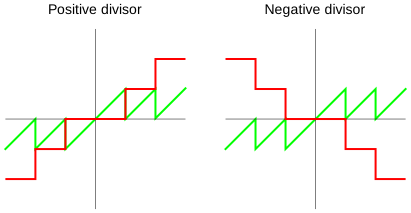
Python’s approach seems to me more intuitive compared to C’s, as
1. We stay always in the same (positive or negative) world if the divisor is fixed.
2. The negative and positive intervals of the dividend are continuous. There is not break like in C.
C’s approach probably stems from the fact that many processors support truncated integer division as default.
## Working with truncated division to solve the problem
C’s modulo will give negative results if `p2-p1` is negative, however we want always positive values. Additionally -4 should correspond to 1. We have two options:
1. Fixing the remainder values for negative differences by adding 5 to the result only if the quotient is 5.
2. We know that the minimum value we may get is -4, so we can shift our difference 5 to the right, so the minimum value we may get will be 1.
The second one requires only a single operation, where the first two. Let us proceed with the second:
| (p2-p1+5) mod 5 | p1 … |
|-------------------|--------|
| 0 | tie |
| <= 2 (1 or 2) | wins |
| else (3 or 4) | loses |
🎉 This was a long improvement process, in which we minimized our problem to:
- one or two additions
- a modulo (integer division)
- two comparisons
Now let us leverage this in our code:
## Appendix
- [Variants of modulo](https://en.wikipedia.org/wiki/Modulo#Variants_of_the_definition)
# generating-random-numbers.html.md
# Generating random numbers
```c
int rand(void);
```
```c
#include
#include
const size_t NUMBER_COUNT = 3;
int main() {
printf("🎲 ");
for (size_t i = 0; i < NUMBER_COUNT; ++i)
printf("%d ", rand());
}
```
```text
🎲 1804289383 846930886 1681692777
```
Running the program again:
```text
🎲 1804289383 846930886 1681692777
```
Would you call `rand` a random number generator?
pseudorandom number generator [](https://en.wikipedia.org/wiki/pseudorandom number generator)
: an algorithm for generating a sequence of numbers whose properties approximate the properties of sequences of random numbers – also known as *deterministic random bit generator*. … is not truly random, because it is completely *determined by an initial value*, … called *seed*.
random seed [](https://en.wikipedia.org/wiki/random seed)
: a number used to initialize a pseudorandom number generator
## Generating a different sequence
```c
void srand(unsigned int seed); // seed random number generator
```
From [rand manual](https://man.archlinux.org/man/rand.3):
> If no seed value is provided, the rand() function is automatically seeded with a value of 1.
```c
#include
#include
const size_t NUMBER_COUNT = 3;
void generate_and_print_random_numbers() {
printf("🎲 ");
for (size_t i = 0; i < NUMBER_COUNT; ++i)
printf("%d ", rand());
puts("");
}
int main() {
generate_and_print_random_numbers();
srand(1);
generate_and_print_random_numbers();
srand(0);
generate_and_print_random_numbers();
srand(2);
generate_and_print_random_numbers();
}
```
```text
🎲 1804289383 846930886 1681692777
🎲 1804289383 846930886 1681692777
🎲 1804289383 846930886 1681692777
🎲 1505335290 1738766719 190686788
```
On my system, `srand(0)` and `srand(1)` have the [same effect](https://stackoverflow.com/questions/8049556/what-s-the-difference-between-srand1-and-srand0).
Do you think that this way of generating numbers is useful in our problem? Why?
## Generating a different sequence at each run
Example using the time now as a seed.
```c
#include
#include
#include
const size_t NUMBER_COUNT = 3;
void generate_and_print_random_numbers() {
printf("🎲 ");
for (size_t i = 0; i < NUMBER_COUNT; ++i)
printf("%d ", rand());
puts("");
}
int main() {
generate_and_print_random_numbers();
srand(time(NULL));
generate_and_print_random_numbers();
}
```
```text
🎲 1804289383 846930886 1681692777
🎲 1973196664 947728345 447252970
```
Running the program again:
```text
🎲 1804289383 846930886 1681692777
🎲 607778187 1595380875 271368380
```
# giving-something-vs-pointing-to-something.html.md
# Giving something vs pointing to something
# header-files-and-inline-documentation.html.md
# Header files and inline documentation
[Doxygen](https://www.doxygen.nl) is a documentation generator. It reads specially formatted inline comments and generates, e.g., HTML.
Example:
```c
#pragma once
/** @file caesar.h
* @brief Caesar cipher only defined for upper-case ASCII
*/
#ifndef CAESAR_SHIFT
#define CAESAR_SHIFT 3 /**< Shift for each letter. */
#endif
/**
* @brief Encrypt an upper-case string with Caesar in-place
*
* @note Non-uppercase characters are ignored. Uses @ref CAESAR_SHIFT.
* @return Same string encrypted
*/
char *caesar_encrypt(char *plaintext);
/**
* @brief Encrypt a single upper-case character
*
* @note Non-uppercase characters are ignored
*/
char caesar_encrypt_char(char plaintextc, char shift);
/**
* @brief Decrypt an upper-case string with Caesar in-place
*
* @note Non-uppercase characters are ignored. Uses @ref CAESAR_SHIFT.
* @return Same string encrypted
*/
char *caesar_decrypt(char *ciphertext);
/**
* @brief Decrypt a single upper-case character
*
* @note Non-uppercase characters are ignored
*/
char caesar_decrypt_char(char ciphertextc, char shift);
```
The comments on the top of a declaration are also automatically shown by the language server. They don’t have to follow Doxygen syntax:

# how-to-use-provided-functions.html.md
# How to use provided functions `token_id` and `append_to_succs`
In this problem you have to use complicated functions that are given to you.
1. Examples with `token_id` and `append_to_succs` functions.
Analyze the input and output before using them.
2. using the debugger in the development process, to stop after an implemented function.
# knights-tour.html.md
# Knight’s tour
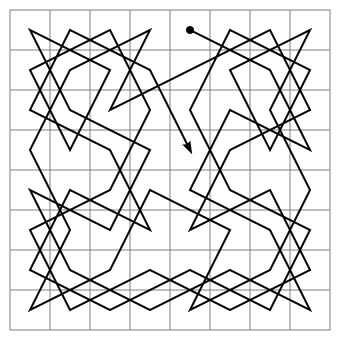
Knight’s tour [](https://en.wikipedia.org/wiki/Knight's tour)
: A sequence of moves of a knight on a chessboard such that the knight visits every square once.
We will implement a program that tries to solve the Knight’s tour problem. The problem can be solved with an open or closed loop like in [Fig. 17](#knights-tour-open) and [Fig. 18](#knights-tour-closed), respectively. It does not matter which solution your program finds.
Implement a program that begins on a square and makes the first move that is possible and continues moving in the same manner until it is not possible anymore. This is a *greedy algorithm*.
Greedy algorithm [](https://en.wikipedia.org/wiki/Greedy algorithm)
: An algorithm that makes the locally optimal choice at each stage.
Requirements:
1. Your documentation includes flowchart/s.
2. Your program outputs the maximum number of squares toured for each square as follows:
```text
Greedy:
36 37 43 49 36 35 48 42
54 43 35 36 42 48 35 34
36 29 54 42 34 35 41 47
42 28 35 28 54 41 33 34
45 35 41 27 26 27 46 40
40 8 44 44 40 26 33 32
10 54 46 54 55 31 39 54
42 37 35 55 36 32 35 32
```
3. Your program uses the following compile-time constants and functions.
```c
#define SIZE 8 /**< Board size. */
/**
* Knight move offsets
*
* Moves that a knight can make relative to the current position.
* For example,
* x += MOVES_X[0]; y += MOVES_Y[0]
* corresponds to one of the eight moves that a knight can make, where `x` and
* `y` represent the current position.
*/
#define MOVE_COUNT 8 /**< Number of moves that a knight can make */
const int MOVES_X[MOVE_COUNT] = {2, 1, -1, -2, -2, -1, 1, 2};
const int MOVES_Y[MOVE_COUNT] = {1, 2, 2, 1, -1, -2, -2, -1};
/** Determines whether a move is possible from a starting position.
*
* @param move_id One of the 8 moves that the knight wants to make [0, 7]
* @param x Current horizontal position
* @param y Current vertical position
* @param visited A two-dimensional array that represents the squares. If a
* value is positive, then the corresponding field was visited before.
* @return True if the move is possible, else false.
*/
bool move_is_possible(size_t move_id, size_t x, size_t y, board_t visited);
/** Attempts a tour by picking the first accessible square.
*
* @param start_x Horizontal starting position on the board
* @param start_y Vertical starting position on the board
* @return The number of visited squares
* @note An array is created for the attempt
*/
unsigned int tour_greedy(size_t start_x, size_t start_y);
/** Attempts tours beginning from each square available on the board
* and annotates the number of visited squares like this:
*
* 15 8 15 15
* 10 6 4 15
* 8 10 14 14
* 14 14 14 11
*/
void greedy_tour_from_each_square();
```
4. Even `SIZE` is 8 as default, your program should also work with `SIZE`s other than 8.
5. Organize your project into the files `knights_tour.{h,c}` and `main.c`.
6. Optional: Implement a non-greedy approach that prioritizes squares that are more difficult to access compared to others. For example the following table shows for each destination square, from how many departure squares the destination square is accessible on a 8x8 board.
```default
2 3 4 4 4 4 3 2
3 4 6 6 6 6 4 3
4 6 8 8 8 8 6 4
4 6 8 8 8 8 6 4
4 6 8 8 8 8 6 4
4 6 8 8 8 8 6 4
3 4 6 6 6 6 4 3
2 3 4 4 4 4 3 2
```
# language-server-assistance.html.md
# Language server assistance
In this section we will integrate code assistance through the clangd language server. Moreover we will also see how to create a new project.
## Motivation – direct feedback in source code
Replace your code with the following code. Use the existing project.
```c
int main(){return n}
```
You should see some errors in your terminal. Do not fix them.
Wouldn’t it be much more convenient to see errors as you type? Tools exist for this purpose. We will use [clangd](https://clangd.llvm.org) which can pinpoint errors already on the editor and other features we will discover. This tool is included in the same package as the clang compiler we installed before.
## Testing if clangd executable is available
1. Switch to a normal terminal in the editor (e.g., `powershell`) by pressing any key on the 🛠️ build & run terminal.
2. Try to run:
- Windows: `clangd.exe`
- Linux/macOS: `clangd`
The command should output something similar to: `clangd is a language server that provides IDE-like features to editors....`
Not available? `clangd` is part of the LLVM package that we installed before, so it should be available, if the compiler `clang` works.
3. Exit clangd by using on the terminal
language server [](https://en.wikipedia.org/wiki/language server)
: a tool that provides language intelligence tools like code completion, syntax highlighting, marking of warnings and errors
## Installing clangd editor extension
We will install clangd extension for our editor to be able to leverage clangd in programming:
1. Click on  `Extension` on the leftmost bar. Extensions bar should show up.
Using extensions we can add extra functionality to our editor.
2. Search for `clangd`. Click on `clangd` (not other forks like `Kylin Clangd`).
3. Click on `Install`. A window will pop up asking whether you want to trust.
4. Click on `Trust Publisher & Install`.
## Testing clangd extension
After the installation, you will notice that `main.c` tab title became red and shows `2` which is the number of errors.
1. Go back to `main.c` tab. You will notice the red wavy underline under n. This points to an error.
2. Hover on n. A small window will pop up mentioning the two errors. One of the errors can be fixed automatically using `Quick Fix` Ctrl..
3. Use quick fix using the shortcut. It will open up a `Quick Fix` window and will suggest `insert ';'`.
4. Select the suggestion. You will have one error left.
5. Fix the last error by replacing `n` with `0`.
6. Build your project again. You should see no errors.
## Configuring clangd
Previously, we created a `compiler_flags.txt`. This file is also read by clangd. We need an additional option to get additional helpful messages from clangd:
1. Open settings and search for `clangd`. You should see `Clangd: Arguments`.
2. Add the following item: `--clang-tidy`.
## Starting a new project alongside a former project
You will work on multiple projects and you may want to use code from your former projects when you start a new project. Code can open multiple projects in a single workspace.
workspace [](https://en.wikipedia.org/wiki/workspace)
: collection of one or more folders opened in Code
Follow the steps:
1. CtrlShiftp for command palette
2. enter `add folder` and click on `Workspaces: Add folder to Workspace`. File explorer of your OS should pop up.
3. Beside your first folder `hello`, create a new folder `pi-estimator`.
4. Click `Add`. You should see the new folder open in your editor’s file explorer. If not, click on .
5. Copy the following from the previous folder to the new folder. You can use Ctrlc or drag the folder/file with your mouse while pressing Ctrl.
- `main.c`
- `.vscode/`
6. Open `pi-estimator/main.c` and press F5. The editor will ask which build task you want to run, because we have two default build tasks in our workspace.
7. Select `build - pi-estimator`.
In the `Debug console`, you will see that your project was run successfully.
If you F5 again, then you have to select the build task again. If you don’t want to select again and again, close the previous project:
1. Right click on the project folder’s name.
2. Click on `Remove folder from workspace`.
In the following we will replace the contents of `pi-estimator/main.c` while introducing another feature of the language server.
## Autocompletion
The language server `clangd` also assists us by suggesting code and completing partially written code. Let us experience this. Write the first characters of the following code – `#inc` and see the suggestions, then select `#include `.
You can copy paste the rest of the code.
```c
#include
#include
#include
int main() {
int total=1000000,inside=0;
srand(time(0));
for(int i=0;i
int main() {
for(int i=0;i<4;i++){printf("%d ", i*i);}}
```
```c
#include
int main() {
for (int i = 0; i < 4; i++) {
printf("%d ", i * i);
}
}
```
Pay attention to:
- alignment of `{` and `}` that belong together
- spacing after `;`
- beginning a new line for a new statement like `for` and `printf`.
Do you agree that formatted code looks better?
Luckily the editor can format our code automatically using the language server `clangd`:
1. Click on your code.
2. Right click -> `Format Document`. Your code should now be formatted.
Formatting usually makes our code more readable, so let us automatize formatting. The editor can format whenever we save our code:
1. `File` -> `Preferences` -> `Settings`. Settings will show up in a tab.
2. Click on `Search settings`.
3. Search for `format`
4. Activate:
- `Editor: Format On Save`
- `Editor: Format On Paste`
- `Editor: Format On Type`
## Renaming symbols
Another useful feature of `clangd` is renaming of symbols without renaming other unrelated strings. Let us try it together:
1. Open the code above that calculates pi.
2. Click near `i` as follows:

3. Click f2 or right-click -> `Rename Symbol`. A small prompt will come up prefilled with symbol’s name `i`.
4. Rename it to `j`. You will see that all `i` are renamed, but not `i` in the symbol `inside` below.
Renaming will be especially useful when we work on our code for a longer time where our code grows gradually. Then some tidying up and renaming of variable names may be needed for improving readability.
# linked-list.html.md
# Linked list
In previous weeks we discussed about:
- the superpower of `struct`’s before in section [Self-referential struct](../week09/struct.md#self-referential-struct), where we built an infinite string.
- [Static- and stack-based memory](../week06/variable-length-arrays.md#static-and-stack-based-memory)
- we will introduce *heap*-based memory
## Definition
linked list [](https://en.wikipedia.org/wiki/linked list)
: a linear collection of data elements whose order is not given by their physical placement in memory.

## Array vs linked list

Array elements are always in sequence and its space cannot be changed after declaration. See [Fig. 29](#id2).
1. Above (list): If we wanted to add additional data and array did not have reserved space for additional data, we would need to allocate a larger space and copy the original array and the new data into the larger space
2. Below (linked list): In contrast, we don’t have to copy the original data, but (1) allocate new space for the new data and (2) connect the new data to the original data.
## Insert operation on a linked list

For modification, we need the following steps:
1. Find the node we want to insert the element after.
2. Allocate new space for `newNode` using `malloc` on the heap memory
3. Link `newNode` with the neighboring nodes
## Heap-based memory
```c
typedef struct S S;
S *f1() {
S s;
// stack-based memory
// Released after the function returns.
//...
return &s; // ❌ will be overwritten by other functions
}
S *f2() {
S *sp = malloc(sizeof(S));
// heap-based memory
// Persists after the function returns.
//...
return sp;
}
auto sp = f2();
//...
free(sp);
// Deallocates sp.
// In other words, gives the memory area free for other users.
```
# links.html.md
# Links
These are links that I could not integrate into the reading materials.
- [latest C23 standard working draft](https://www.open-std.org/jtc1/sc22/wg14/www/docs/n3220.pdf). [Published standards](https://www.c-language.org/) are not free.
# llm-code-assistance.html.md
# LLM code assistance
We will setup LLM code assistance in our editor so that the LLM can interact with our code directly. You are probably already using an LLM agent and LLM integration in our editor will ease the interaction and save you copy & paste time.
For using LLMs directly in our editor, we have two options:
1. Running a local LLM on our computer
2. Using cloud services from companies like Mistral, OpenAI, Anthropic, etc.
Without a powerful graphics card or neural-network accelerator, the first option will probably be very slow. On the other hand most cloud services are not free to use including OpenAI. Even ChatGPT is free to use, using it as a remote cloud application, i.e., using their API (application programming interface), is not free.
Groq, an American AI company, has a free tier, which allows about [thousand requests per day for some models](https://console.groq.com/docs/rate-limits), e.g., `openai/gpt-oss-120`, which should be sufficient for an educational setting. If you run out of credits, you can try another agent or use a free to use the LLM that you have been already using through your web browser, e.g., Mistral, ChatGPT, etc.
Another alternative is GitHub Copilot. GitHub Copilot can be used for education for free after you apply for a license in [GitHub Education](https://github.com/education). Note that Copilot extension may only be installed on VS Code and not in VSCodium, so you have to shift to VS Code if you go for Copilot.
In this tutorial, I used a plugin called Continue. It lets you connect to lots of different LLM providers, which makes the whole setup feel more open and flexible. The disadvantage is that it might not be as reliable as the official AI assistant GitHub Copilot.
Let us first get an API key from Groq and then use it in the Code LLM extension [Continue](https://github.com/continuedev/continue).
## Creating a Groq API key
1. Go to [https://console.groq.com](https://console.groq.com).
2. Create an account. You will be logged in to the dashboard after creating an account.
3. Click on `Create API key`. You will immediately be shown an API key.
4. Copy the API key.
## Installation of Continue
1. In Code, install the extension *Continue - open-source AI code assistant*. It may take about 1 minute.
After the installation, you will see a settings icon  right to the `Auto Update` on the tab of the extension and also on to the Continue app in the extension listing.
You will also notice the new Continue icon on the activity bar.
## Configuration of Continue
First Move the Continue icon from the first step to the secondary sidebar on the right [as shown here](https://docs.continue.dev/getting-started/install).
We will now configure the plugin.
If you want to disable sending usage data to Continue: (optional)
1. Click on one of the  icons that belong to Continue. A menu will pop up.
2. Click on `Settings`. Settings tab will open up and filter for the settings of Continue.
3. (optional) Go to `Telemetry Enabled` and opt out telemetry if you desire.
4. Close `Settings`.
Now we will configure which LLM we want to use:
1. On Continue window, click on `Or, configure your own models`. A configuration window will open up.
2. Right below the `Connect` button, click on `Click here to view more providers`. `Add Chat Model` window will pop up.
3. Select the provider `Groq`.
4. Select in the model drop-down menu `Autodetect`.
5. Paste the API key that you have here into the corresponding field.
6. Click `Connect`. The tutorial file `continue_tutorial.py` and the text-based configuration file `config.yaml` will open up in new tabs. You can close these two files.
Additionally `Models` window will be open, select `openai/gpt-oss-120` for `Chat`, `Apply`, and `Edit`.
Click on the `Models` to close the model settings.
## Usage examples: explanation and formatting
1. We are going to try the agent on our previous code. So click back to the tab with the source file you have written before – the pi estimator.
2. On the Continue tab, if the a subwindow called `Create Your Own Assistant` is open, you can close it.
We will ask the agent to explain the code for us. Before you do, take one minute at the code line by line and try to guess how the program creates the output. It is completely acceptable, if you don’t understand most of the lines. You will gradually improve. Continue after your try.
1. Write on the prompt field `explain line by line` and press AltEnter. Without Alt, Continue does not send your code to the agent.
Compare your explanation with the agent’s.
#### WARNING
I tried the following with another model. The output may be different for you.
1. Now write `format code`. LLM should reply with formatted code. I got the following:
```c
#include
#include
#include
int main() {
int total = 1000000;
int inside = 0;
srand(time(0));
for (int i = 0; i < total; i++) {
double x = (double)rand() / RAND_MAX;
double y = (double)rand() / RAND_MAX;
if (x * x + y * y <= 1)
inside++;
}
double pi = 4.0 * inside / total;
printf("Estimated pi: %f\n", pi);
return 0;
}
```
Even I prompted *format code*, the model added also `return 0;` line, which is not required, but can be part of an explicit code style. When I tried another model, llama-4-maverick, it did not include `return 0`. So pay attention that you review the changes block by block and ask different models in doubt.
You notice that formatting looks different than the language server we used. LLM is able to recognize blocks that logically belong together and insert newlines accordingly, which is more advanced compared to the clangd formatter we used. Nevertheless, clangd formatter should be just fine for daily work. I just used this example to showcase an LLM’s difference to a formatter.
2. To apply the changes: On the right top corner of the code reply, click on `Apply`. `Accept | Reject` blocks will appear in your code.
As recommended before, accept or reject block by block – especially if you are in the process of getting to know a model.
You probably already know that ChatGPT can keep a memory of your preferences and you can customize ChatGPT with custom instructions like *prefer being direct over being nice when giving feedback*. You can also customize your code assistant’s traits. How see how to do that in Continue, [click here for details](appendix.md#adding-rules-to-continue).
## LLM-based inline code suggestions can affect your learning negatively
One of the learning goals of this course is to identify and explain core programming concepts *without an LLM* to be able to criticize the output of a LLM later when you become more proficient. For learning programming concepts, you have to face some difficulty and not use an autopilot. My recommendations to reach the learning goals of this course are:
1. **First write the programs yourself** and ask the LLM as a second step only for getting feedback, improvements or explanations.
2. **If the extension you use provides code suggestions while you write code – called inline code suggestions, deactivate this feature**. Compared to typical code completion by the IDE, LLM-based suggestions are long and detailed. This feature can be too much help for learning in the beginning. After you become confident, e.g., you are able to write programs yourself, you can carefully activate this feature again.
As I heard, GitHub Copilot uses inline code suggestions in form of ghost text as default. Search for `copilot disable inline suggestions` to disable it.
Continue’s inline suggestions work only with particular LLMs. In our configuration, they are not activated. Continue suggests code changes only after asking in the chat window, that must be applied with mouse clicks. First try to understand these changes, and then type them manually until you become more confident.
# miscellaneous-topics.html.md
# Miscellaneous topics
* [Different types of `const` in pointers](appendix/different-types-of-const-in-pointers.md)
* [Further minimization on RPSSL resolution logic](appendix/further-minimization-ideas-rpsls-resolution-logic.md)
* [Why do I prefer the format specifier `%d` over `%i` in `printf`?](appendix/format-specifiers-d-vs-i-in-printf.md)
* [Reading the return value of `main()` on the terminal](appendix/reading-the-return-value-of-main-on-the-terminal.md)
# modularization.html.md
# Modularization
modular programming [](https://en.wikipedia.org/wiki/modular programming)
: a programming paradigm that emphasizes organizing the functions of a codebase into independent modules – each providing an aspect of a computer program without providing other aspects.
## Defining functions
```c
int square(int n); // Function prototype (typically in .h files)
int square(int n) { // Function definition (typically in .c files)
return n * n;
}
```
## Managing multiple modules in C
```text
📁 include/ <= How is a module used?
📄 lib1.h
📄 lib2.h
📁 src/ <= Implementations
📄 lib1.c
📄 lib2.c
📄 main.c
```
## VS Code considerations
You have to modify:
1. `compile_flags.txt`, so that language server can see the header files:
```text
-std=gnu2y
-g
-Iinclude
```
2. `tasks.json`, e.g.,:
```json
"command": "clang",
"args": [
"'@compile_flags.txt'",
"./src/main.c",
"./src/lib1.c",
"./src/lib2.c",
"-o",
"main"
],
```
Alternatively we can use a `makefile` and use `make` as the command.
# moving-a-shape.html.md
# Moving a shape
1. Starting with the template
- Getting rid of unnecessary parts
- creating a new function for updating the shapes because `if(!WindowShouldClose())` is already two times indented which bloats the view.
2. Creating a shape struct
- using a `typedef` or not
- (creating a self-reference if not shown before)
3. Implementing a function that updates the ball for each frame
- (Bouncing)
# organizing-code-in-a-repo.html.md
# Organizing code in a repo
Now we will learn how to organize our code on a repository primarily for keeping a diary about our work and sharing it. First we will store them in a local repository and afterwards in a remote one.
repository [](https://en.wikipedia.org/wiki/Repository_(version_control))
: (in context of version control systems) a data structure that stores metadata for a set of files or directory structure. The main purpose of a repository is to store a set of files, as well as the history of changes made to those files.
version control [](https://en.wikipedia.org/wiki/version control)
: the software engineering practice of controlling, organizing, and tracking different versions in history of computer files; primarily source code text files, but generally any type of file.
## Why do we use repositories?
Most programmers use repositories to organize their software projects, but should you – as a student in this course?
Keeping a history of changes is helpful if we or someone else who also work in the project would like to understand changes in the project which is useful for *collaboration*. Keeping a history helps also to roll changes back if something does not work as intended.
Keeping projects in a repository is also helpful to collaborate and share code. You will use it later to share or submit your projects. You maybe already downloaded something from the code forges [GitHub](https://github.com), [GitLab](https://gitlab.com), or [Codeberg](https://codeberg.org). GitHub is the most popular one and on which most of the open source projects in the world are organized. GitLab is popular among companies, because GitLab is open-source. Codeberg is European and is privacy-focused.
Last but not least, pushing your code to a forge will keep a backup of your project in the cloud.
forge [](https://en.wikipedia.org/wiki/forge (software))
: a web-based collaborative software platform for developing and sharing software applications
## Installation
Git is the most popular version control software. Before we can use git related functions in the editor, we have to install git using our package manager:
### Windows
```default
winget install git.git
```
### MacOS
```default
brew install git
```
## Repository initialization && creating the first commit
Go back to your editor.
1. On the activity bar, click the  icon. `Source Control` window will open up.
2. On the `Source Control` window, you should see `Initialize Repository` button. If not, click `reload`.
3. Click `Initialize Repository`. `Changes` window will show up, which should show you the following files:
1. `main.c`
2. `main`
3. `tasks.json`
4. `launch.json`
5. `compile_flags.txt`
You will see `U` beside these files. `U` stands for *untracked*, which means these files are not tracked by the repository.
Typically only *source files* and files for compiling the project are tracked in a repository, so we will only track `main.c`, `tasks.json`, `launch.json`, `compile_flags.txt`, but not the compiled file `main`.

4. To add these two files to the repository – or to *track* in other words, hover on the filenames and click the  symbol on each. You will an `A` on the right of the files, which stands for *added* as depicted in [Figure 2](#git-untracked-added).
5. Click the `Message` prompt to write a commit message. When we use repositories we make our changes in *commits*.
Ideally each commit should be a set of changes that adds one or many describable feature like *improved user name handling* or *added robot program*. The advantage is that the programmer can roll back changes if these features led to problems later. Sometimes people don’t want to put so much structuring work and use a repository as a *diary* and commit code at the end of the day, which is not a good practice in a professional environment.
This is our first commit, so use the message `initial`.
6. Click the  `Commit` icon. You will see your first commit on the `Graph` window below.
#### WARNING
When you commit your first changeset, you may get an error about that you did not setup [git username](https://docs.github.com/en/get-started/git-basics/setting-your-username-in-git) and [email](https://docs.github.com/en/account-and-profile/how-tos/setting-up-and-managing-your-personal-account-on-github/managing-email-preferences/setting-your-commit-email-address#setting-your-email-address-for-every-repository-on-your-computer). Git attaches a name and email address for each commit to identify the committer.
Setup them using following commands on a terminal. You can choose any name or email. If you use your GitHub username, then the forge will link your commits to your profile.
```sh
git config --global user.name "YOUR NAME"
git config --global user.email "YOUR_EMAIL"
```
changeset [](https://en.wikipedia.org/wiki/changeset)
: list of differences between two successive versions in a repository
commit [](https://en.wikipedia.org/wiki/commit)
: the operation of committing such a changeset to the repository
## Sharing our repository on GitHub
The repository we used is until now local to our computer. Now we will create a copy of the local repository on GitHub.
1. On the `Graph` window, click the  `Publish Branch` icon. A confirmation window will pop up to sign in using GitHub.
2. `Allow`. A new window will pop up with authentication code.
3. `Copy & Continue to GitHub`. A new confirmation window will pop up.
4. `Open`. A browser window will pop up.
Create (if you don’t have an account) and login to GitHub. You will be forwarded to the `Device Activation` page on GitHub.
5. Paste your code. `Authorize Visual Studio Code` should come up.
If the code is not available anymore, go back to the editor and start from step 1.
6. Click `Authorize Visual-Studio-Code`. You should see `Congratulations` …
7. You can close the browser.
8. A window will pop up with two options — whether you want to publish privately or publicly. You will use this repository to submit your work, so: select `Publish to GitHub public repository ...`.
9. You will get the notification `Successfully published ...`.
If you missed the notification, click the  (bell) icon in the below right corner of the editor.
## Checking the forge after push
After pushing your code, you should see the notification on the bottom left:
> Successfully published the “YOUR_USERNAME/PROJECT” repository to GitHub.
To see if everything went correctly, Click `Open on GitHub`.
If you cannot find this notification, you can also browse [https://github.com](https://github.com) and search for your project there. If you cannot find it, you can also use the following URL template:
```text
https://github.com/YOUR_USERNAME/YOUR_PROJECT
```
You should see something similar to:
```text
YOUR_USERNAME initial ... 1 Commit
.vscode
compile_flags.txt
main.c
```
## Adding a README on GitHub
When we share work, we should also write some information about what the code is about in the README file.
We could do these steps in our editor, but we will try the web interface to demonstrate the synchronization between the forge and local repository.
1. Go to [https://github.com](https://github.com) and to your project repository.
2. On the repository page on GitHub, click `Add a README`.
3. You can write something along the lines of:
```markdown
# Hello
An example program for my C programming course.
```
Click `Preview` to see how this text will be rendered.
4. `Commit changes...`. `Commit changes` window will pop up.
5. You can leave the automatic commit message. `Commit changes`. You will be forwarded to your main repository page.
## Synchronizing repositories on the code forge and local computer
1. You can close GitHub.
2. We made changes on GitHub, which are not visible on the repository on our computer.
3. On the editor, if you have a notification about: `Would you like ... to periodically run "git fetch"?`. Click `Yes`, unless you prefer manually pulling the changes. If you don’t see the notification, then search for `git.autofetch` in settings and activate it.
This setting will automatically get the project updates from the forge. This is useful when we collaborate or edit our code on different platforms, e.g., local computer, web-based IDE or on the forge.
4. Auto-fetch will automatically download the changes you have done on the forge every 3 minutes. After some time you should see that the blue  `main` icon will be below the violet  `origin/main` icon. If not, you manually fetch using the  icon.
The different levels of the  and  icon means that your repository downloaded the changes from the forge, but they are currently not applied. The application operation is called *pull*.
1. To pull the changes, on the `Graph` window, click  `Pull` icon. Now the icons  and  will be on the same level.
## When should we create additional commits?
After you have a meaningful progress on your project, then you should create a commit. Let us take this website as an example. These course materials are also organized in a repository. When I begin working, a have typically a goal, e.g., I want to write a new section about *Organizing code in a repo* in the file `organizing-code-in-a-repo.md`. In the process of writing this section, then I may also have to modify other already existing files like `first-project.md` and `ide-installation.md`. When I am finished, my changeset will consist of the modifications in `first-project.md` and `ide-installation.md`, and the new file `organizing-code-in-a-repo.md`. Then I would *stage* these three changes and write a commit message like:
> new section: Organizing code in a repo
Finally I would commit and push my changes.
## Adding additional commits in the editor

Now we will create commits in our editor ourselves. Let us assume you have an initial commit that contains your initial C project. You modified your `main.c` by formatting the code and added the flowchart image `flowchart.svg` that documents your code.
1. On the activity bar, click the  icon. `Source Control` window will open up.
2. Hover over one file that you want to stage before committing, then click the  symbol. Repeat this for each file you want to stage.
In our case we want to add `flowchart.svg` and `main.c`.
After staging, your Changes window should look like [Figure 3](#git-staged-changes).
3. Write a descriptive message, e.g.,
> formatting & flowchart
4. Click `Commit` or `Commit & Push`. The latter is under the  icon.
## Which files belong to the repository?
Only add source files and project files which are relevant to compile and run your code to the repository. Files *generated from source files usually do not belong to the repository*, e.g., `*.exe`, log files etc. Some reasons are:
- A repository is typically used to track changes in text files, because text files consists of readable lines which can be easily differentiated between commits.
- We want to keep our repository minimal to avoid complexity. If some files can be easily generated using the source files, we have less amount of files by avoiding generated files.
## `.gitignore` for hiding files that do not belong to the repo
We did not stage one of the files in [Figure 3](#git-staged-changes) – `main` (`main.exe` on Windows). We should never commit an executable file, so hiding it forever from git changes would be more convenient.
You can ignore it by following the steps using the `.gitignore` file:
1. Click the  icon on the sidebar.
2. In the root of your project, create a file named `.gitignore` and open it.
3. Add the following line
```default
main
```
`.gitignore` contains the names of files or folders which should be ignored by git.
4. Save the file. You will see that the green U symbol right to the `main` will vanish and `main` will also be grayed out.
The graying out helps with focusing on source files instead.
5. Click the  icon. You will see that `main` does not show up anymore.
6. Stage `.gitignore` and commit (and push) your changes.
## Getting the forge link for submissions
Each commit is like a *snapshot* of your project. In a metaphorical sense, you take a photo of your project in each commit and this photo does not get lost. Each commit receives an individual numerical id which identifies the snapshot.
You should use a snapshot of your work instead of the latest version when submitting your work. By submitting the snapshot link you can continue working on your project. Moreover it will be a proof that you submitted your work before the deadline and are fair to other students.
### Manually

We will build a snapshot link using the *commit id* and GitHub’s URL.
First let us get the *commit id*. The commit id is a unique name for a commit that also describes a snapshot of our project.
1. Click the  icon.
2. Look on the Graph, which lists your commits.
3. Right click the commit that corresponds to the project version you want to submit. You will probably choose the latest commit.
4. Right click the commit and click `Copy Commit ID` as shown in [Figure 4](#git-copy-commit-id).
The snapshot link consists of the commit id and the forge prefix. For example if we break the following snapshot link down:
```default
https://github.com/goekce/CurrencyConverter/tree/f60a350130ec8f3633b68e6e65f3504f17a2cda1
```
| link component | description |
|----------------------|------------------------------------------------------------------|
| `https://github.com` | forge |
| `goekce` | **username** |
| `CurrencyConverter` | **project** |
| `tree` | indicates that you want to view the file and directory structure |
| `aa4307...` | **commit id** |
You have to fill **username**, **project** and **commit id** with your own data and submit the resulting link.
### Using the web interface
1. Go to your project on [https://github.com](https://github.com), if you cannot find it it should be under `https://github.com/USER_NAME/PROJECT_NAME`, e.g., [https://github.com/goekce/CurrencyConverter](https://github.com/goekce/CurrencyConverter).
2. Assuming that you want to the get the commit id of the latest commit: Click the latest commit id shown in the following screenshot:

You will be forwarded to the commit page which details the changeset.
3. Click the top right `Browse files` as shown in the following screenshot:

You will be forwarded to the address that you can use for submission, which should have the pattern shown in the [previous section]().
# outlook.html.md
# Outlook
I wish that you will use your knowledge for good. As a motivation I would like to present you the most impactful project that I have carried out as a student: [A washing-machine reservation system](https://gitlab.com/goekce/old-electronics-projects/-/tree/main/ethernet-based-washing-machine-access-control) for my dormitory.
In my career I used C almost always for systems programming, e.g., embedded systems, microcontrollers. [Here](https://gitlab.com/goekce/atmega328-examples/) are some code samples.
Electronics must not always be very productive. I also had fun with [a universal TV remote control](https://aydos.de/photos.html#tvbgone).
Once I also built [the useless machine](https://en.wikipedia.org/wiki/Useless_machine) and gave it as a present to my diploma thesis supervisor. The complex firmware of the device I was working on had a problem, so in the end we could not increase the data rate. One of the motivations of the thesis was to process data with a high data rate, but I could not fix the bug in time and had to deliver my project as is. I thought the useless machine has at least a *strong character*. It *honestly* refuses to do anything useful.
Was C your first programming language?
If C was your first programming language, you will see that learning other programming languages will be easier.
If you already knew a high-level programming language like Python, then you probably have more insight into how data is processed in memory. Remember stack, heap, and of course, pointers.
I would like you to leave the classroom with a problem that you want to solve using programming.
# overview-of-editor-shortcuts.html.md
# Overview of editor shortcuts
| F5 | start debugging |
|----------------------------------------------|-------------------|
| CtrlShiftb | build project |
| CtrlShiftp | command palette |
| CtrlShift\` | open a terminal |
| Ctrl. | quick fix |
| CtrlShift\` | open a terminal |
# package-manager.html.md
# Package manager & terminal
We will use a package manager to install software in this course to eliminate the need for manual installs. We will use *winget* in Windows and *Homebrew* in MacOS. Most Linux distributions have their own package manager.
package manager [](https://en.wikipedia.org/wiki/package manager)
: a collection of software tools that automates the process of installing, upgrading, configuring, and removing computer programs in a consistent manner
A package manager is similar to Apple app store, but has software which is not available in the Apple app store.
Winget is built-in in Windows, but Homebrew must be installed on MacOS.
We will use a terminal to install software. So you should now how to open a terminal.
## Opening a terminal
### Windows
1. Press the Windows key
2. Type `cmd`. A black terminal window should pop up.
### MacOS
Refer to the [Open or quit Terminal on Mac](https://support.apple.com/guide/terminal/open-or-quit-terminal-apd5265185d-f365-44cb-8b09-71a064a42125/mac) in the [official Terminal User Guide](https://support.apple.com/guide/terminal/welcome/mac).
### Linux
CtrlAltT should open a terminal on many desktop environments.
## Homebrew installation
#### WARNING
This step is only needed for MacOS.
1. Open a terminal.
2. Copy the command for installing Homebrew from [their website](https://brew.sh/).
3. Paste the copied command into the terminal you opened and then press Enter.
# playlist.html.md
# Playlist

Imagine you want to manage a playlist which supports adding and removing tracks. The playlist should be able to manage thousands of tracks.
## Requirements
1. Use the template below and only provide code in `YOUR CODE HERE` blocks.
2. Document your project, but you don’t have to provide a flowchart.
3. Content in `playlist.txt` should be transformed and written to `playlist-out.txt`, so that you get the following output. This modification is caused by highlighted lines in `main.c`.
4. Optional: augment your code with an interactive command line interface on terminal or even a mouse-interface using raylib.
`playlist.txt`:
```text
Bad Guy – Billie Eilish 👽
Bohemian Rhapsody - Queen 🎤
Billie Jean – Michael Jackson 🕺
Rolling in the Deep – Adele 🌊
Smells Like Teen Spirit – Nirvana 🤘
```
`playlist-out.txt`:
```text
Bad Guy – Billie Eilish 👽
Bohemian Rhapsody - Queen 🎤
Billie Jean – Michael Jackson 🕺
Tarkan – Şımarık 💋
Rolling in the Deep – Adele 🌊
```
## Template
### `main.c`
```c
#include "singly_linked_list.h"
#include
#include
#include
#include
#define TRACK_TITLE_SIZE 60
#define PLAYLIST_IN_PATH "playlist.txt"
#define PLAYLIST_OUT_PATH "playlist-out.txt"
// To avoid unnecessary complexity, we fix the filenames instead of getting them
// through runtime parameters.
typedef char Data[TRACK_TITLE_SIZE];
Node *playlist;
/// Removes trailing newline from the line, if it exists.
/// Note: Some lines may not have a newline, e.g., last line in a file,
/// therefore we have to check for presence.
char *remove_newline_if_exists(char *line) {
// YOUR CODE HERE
return line;
}
/// Reads lines from at `filename`, creates a node for each line and inserts
/// nodes to `list`.
Node **load_file(const char *filename, Node **list) {
// Open the file and assign to stream `f`
// YOUR CODE HERE
if (!f) {
perror(PLAYLIST_IN_PATH);
exit(EXIT_FAILURE);
}
char line[TRACK_TITLE_SIZE];
while (
// Read one line from the stream
// YOUR CODE HERE
) {
remove_newline_if_exists(line);
auto new_node = (Node *)malloc(sizeof(Node));
new_node->next = nullptr;
auto data = (Data *)malloc(sizeof(Data));
new_node->data = data;
// Copy line to `new_node` and append `new_node` to `list`
// YOUR CODE HERE
}
fclose(f);
return list;
}
/// Saves `list` contents to the file at `filename`.
void save_file(const char *filename, Node *list) {
// Open file
// YOUR CODE HERE
// Move through the list and save the tracks to the file
// Note: You have to cast the data to print the track to the file as follows:
// `*(Data *)current->data`, which is the same as `(char *)current->data`.
// We need this cast, because `data` is a pointer to everything (`void *`).
auto current = playlist;
// YOUR CODE HERE
fclose(f);
}
void print_tracks(const Node *const playlist) {
auto current = playlist;
for (size_t i = 1; current; i++, current = current->next)
printf("%2ld: %s\n", i, (char *)current->data);
}
int main() {
load_file(PLAYLIST_IN_PATH, &playlist);
puts("Loaded tracks:");
print_tracks(playlist);
// Deletion
size_t node_index_to_del = 4;
free(delete_at(&playlist, node_index_to_del));
// Insertion
Node node = {.data = "Tarkan – Şımarık 💋", .next = nullptr};
insert_at(&playlist, 3, &node);
save_file(PLAYLIST_OUT_PATH, playlist);
}
```
### `singly_linked_list.h`
```c
#pragma once
#include
/**
* Node of the single list
* @note Thanks to the `void` pointer the linked list can store any datatype.
*/
typedef struct Node {
void *data;
struct Node *next;
} Node;
/**
* Inserts `node` at the 0-indexed position `n` on the list with the start
* node`head`.
* @return `Node *` that has been inserted.
* @note `head` is a pointer to a pointer, because we need to be
able to modify the head of the provided linked list.
*/
Node *insert_at(Node **head, size_t n, Node *node);
/**
* @return size of the list
*/
size_t list_len(Node *head);
/**
* @return node at the index `n`
*/
Node *node_at(Node *head, size_t n);
/**
* Deletes and deallocates node at index `n`.
* @return node data
* @note Data of the node has to be deallocated manually.
*/
void *delete_at(Node **head, size_t n);
/**
* Deletes and deallocates node at index `n`.
* @return the node at the tail of the list.
* @note Can return `nullptr` if the list is empty.
*/
Node *tail(Node *head);
```
### `singly_linked_list.c`
```c
#include "singly_linked_list.h"
#include
#include
static Node *prev_node_at(Node *head, size_t n) {
auto current = head;
Node *prev = nullptr;
if (current) {
size_t i = 0;
while (i != n && current) {
prev = current;
current = current->next;
++i;
}
if (i != n)
return nullptr;
else
return prev;
}
return prev;
}
Node *insert_at(Node **head, size_t n, Node *node) {
if (!n) {
node->next = *head;
*head = node;
return node;
}
auto prev_node = prev_node_at(*head, n);
auto next_node = prev_node->next;
prev_node->next = node;
node->next = next_node;
return node;
}
size_t list_len(Node *head) {
auto current = head;
if (current) {
size_t len = 1;
while ((current = current->next)) {
++len;
}
return len;
}
return 0;
}
Node *node_at(Node *head, size_t n) {
auto current = head;
for (size_t i = 0; i < n;) {
if (current) {
current = current->next;
++i;
} else
return nullptr;
}
return current;
}
// Node *node_idx(Node *head, size_t n);
void *delete_at(Node **head, size_t n) {
auto current = *head;
if (!n) {
if ((*head)->next)
*head = current->next;
else
*head = nullptr;
return nullptr;
} else {
auto prev = prev_node_at(*head, n);
auto node_to_be_deleted = prev->next;
prev->next = node_to_be_deleted->next;
auto data = node_to_be_deleted->data;
free(node_to_be_deleted);
return data;
}
}
Node *tail(Node *head) {
auto current = head;
if (current) {
auto next = current->next;
while (next) {
current = current->next;
next = current->next;
}
return current;
}
return current;
}
```
# pointer-to-function.html.md
# Pointer to function
Until now, we used pointers that point to values. We can also point to functions.
## Birthday collage analogy continued
If we stay in the birthday collage analogy in [Exercise 41](giving-something-vs-pointing-to-something.md#advantage-of-pointers):
You have the collage in your room. You ask your friends to write the design instructions on a paper and they must *assume* that the collage has 5 columns. Each friend can describe, e.g., put my photo and message to the next free cell. Then you collect these recipes and execute them in your room.
## Declaration & Usage
```c
#include
int (*op)(int); // `op` is a function pointer that can point to a function that
// returns an `int` and takes an `int` as argument.
int inc(int n) { return n + 1; }
int square(int n) { return n * n; }
int main(void) {
int n = 4;
op = inc;
n = op(n);
printf("%d\n", n);
op = square;
n = op(n);
printf("%d\n", n);
}
```
```text
5
25
```
## Practical example
To implement the `map` which applies a function on all elements of an array in problem [Cryptography](../week05/cryptography.md#cryptography):
```c
typedef char (*Func)(const char c, char shift);
static char *map(Func f, char *text, char shift) {
for (size_t i = 0; text[i] != '\0'; ++i)
text[i] = f(text[i], shift);
return text;
}
char *caesar_encrypt(char *plaintext) {
return map(caesar_encrypt_char, plaintext, CAESAR_SHIFT);
}
char *caesar_decrypt(char *plaintext) {
return map(caesar_decrypt_char, plaintext, CAESAR_SHIFT);
}
```
# pointer-to-object.html.md
# Pointer to object
## Object
object [](https://www.open-std.org/jtc1/sc22/wg14/www/docs/n3220.pdf#section.3.18)
: region of data storage that can represent values
For example:
```c
int number = 42;
char name[] = "Partha";
```
- `number` is the identifier of the object `42`. `42` is stored in an data storage area of 4 bytes.
- `name` is the identifier of the object `"Partha"`. This object consists of 7 characters.
## We used pointers before
Remember the following diagram from section [Arguments and return value in functions](../week02/data-input-and-datatypes.md#arguments-and-return-value-in-functions):
Do you remember
1. what the arrow tips (directions) mean?
2. an example where a function writes to its arguments?
## Meaning

pointer [](https://en.wikipedia.org/wiki/Pointer (computer programming))
: an object that stores a memory address
Example:
```c
#include
int main() {
int b = 42;
int *a = &b;
printf(" b: %d\n", b);
printf("&b: %p\n", &b);
puts("");
printf(" a: %p\n", a);
printf("*a: %d\n", *a);
printf("&a: %p\n", &a);
}
```
```default
b: 42
&b: 0x7ffcc329dd44
a: 0x7ffcc329dd44
*a: 42
&a: 0x7ffcc329dd38
```
## Declaration
```c
int *a; // Pointer to an `int`
char *c; // Pointer to a `char`
int **d; // Pointer to a pointer to an `int`
float *e = nullptr; // Initialization with zero
// Better than `0`, because `nullptr` identifier shows intent
```
## Usage
#### Pointer operators
| Operator | Meaning | Example |
|------------|---------------|-----------------------------------------------------------------------------------------|
| `*` | *dereference* | `*a` gives the value which is stored at the address stored in the pointer variable `a`. |
| `&` | *address of* | `&b` gives the address of the value variable `b`. |
## Arrays can be used as pointers
```c
#include
char msg[] = "Welcome!";
int main() {
printf(" msg[0]: %c\n", msg[0]);
printf(" msg: %p\n", msg);
printf("*msg: %c\n", *msg);
puts("");
printf(" msg[1]: %c\n", msg[1]);
printf(" msg + 1: %p\n", msg + 1);
printf("*(msg + 1): %c\n", *(msg + 1));
}
```
```text
msg[0]: W
msg: 0x55c77ced8020
*msg: W
msg[1]: e
msg + 1: 0x55c77ced8021
*(msg + 1): e
```
We observe:
- `msg[1]` gives the same value as `*(msg + 1)`.
Note that we can do pointer arithmetic like we do with other types.
We repeat our experiment with an `int` array:
```c
#include
int moves[] = {3, 0, 2, 8};
int main() {
printf(" moves[0]: %d\n", moves[0]);
printf(" moves: %p\n", moves);
printf("*moves: %d\n", *moves);
puts("");
printf(" moves[1]: %d\n", moves[1]);
printf(" moves + 1: %p\n", moves + 1);
printf("*(moves + 1): %d\n", *(moves + 1));
}
```
```text
moves[0]: 3
moves: 0x578af0f64020
*moves: 3
moves[1]: 0
moves + 1: 0x578af0f64024
*(moves + 1): 0
```
## Pointers can be used as arrays
```c
#include
char msg[] = "Welcome!";
char *sptr = msg;
// same as
// char *sptr = "Welcome";
int main() {
printf(" sptr[0]: %c\n", sptr[0]);
printf(" sptr: %p\n", sptr);
printf(" *sptr: %c\n", *sptr);
puts("");
printf(" sptr[1]: %c\n", sptr[1]);
printf(" sptr + 1: %p\n", sptr + 1);
printf("*(sptr + 1): %c\n", *(sptr + 1));
puts("");
puts("using an array vs a pointer to access:");
printf(" msg[10]: %c\n", msg[10]);
// Compiler warns that 10 is past the end of array
printf(" sptr[10]: %c\n", sptr[10]);
// No warning, you can do whatever do want
// For example sptr[10000000] leads to a segmentation fault
}
```
```text
sptr[0]: W
sptr: 0x57ea30fae020
*sptr: W
sptr[1]: e
sptr + 1: 0x57ea30fae021
*(sptr + 1): e
using an array vs a pointer to access:
msg[10]: sptr[10]:
```
Pointer does not know its boundaries if used as an array, but an array variable does.
## Pass by address vs pass by value
```c
void set_to_42(int *n); // pass by address
void set_to_58(int n); // pass by value. Value is copied and given to the function
```
pass by address [](https://en.wikipedia.org/wiki/Evaluation_strategy#Call_by_address)
: a parameter passing method where the address of the argument is passed.
pass by value [](https://en.wikipedia.org/wiki/Evaluation_strategy#Call_by_value)
: the value of the argument is bound to the corresponding variable in the function typically by copying the value into a new memory region.
#### WARNING
The following argument which tries to get a pointer to the array does not make sense. An array is passed as an address anyway.
```c
void set_first_element_to_42(int *arr[])
```
#### NOTE
In literature, you will also see the term *pass by reference* instead of *pass by address*. A reference in C is always an address and an address is always a pointer.
When you talk about it, use *pass by reference* and *pass by value* – every C programmer will understand it. One stands for *having remote access* and the other for *copying the data*.
However if you dig deeper, then you see that in C [everything is pass by value](https://stackoverflow.com/a/78891184/13870816), because the pointers are copied when a function is executed. But it is more important how objects are modified/copied and not pointers themselves.
## Copying an array for passing-by-value
Arrays are always passed by reference to functions. To create a passing-by-value effect, we have to copy it:
Programming the analogy from [Exercise 41](giving-something-vs-pointing-to-something.md#advantage-of-pointers).
```c
#include
#include
#include
#define WIDTH 5
typedef enum { EMPTY, SENTENCE, PHOTO, BOTH } collage_t[WIDTH];
collage_t collage;
/**
* Wants only to write something on the first empty slot
*/
void sentence_friend(collage_t collage) {
for (size_t col = 0; col < WIDTH; ++col)
if (collage[col] == EMPTY) {
collage[col] = SENTENCE;
return;
}
}
/**
* picks a random place and puts both a sentence and a photo.
*/
void creative_friend(collage_t collage) {
for (size_t tries = 0; tries < WIDTH; ++tries) {
size_t col = rand() % WIDTH;
if (collage[col] == EMPTY) {
collage[col] = BOTH;
return;
}
}
}
/**
* Careless friend just overwrites
*/
void careless_friend(collage_t collage) { collage[rand() % WIDTH] = PHOTO; }
int main() {
// FOR DEMO: use debugger to visualize the changes
sentence_friend(collage);
creative_friend(collage);
// You copy the collage for the careless friend
collage_t collage_copy;
for (size_t col = 0; col < WIDTH; ++col)
collage_copy[col] = collage[col];
careless_friend(collage_copy);
// Then you merge the collage_copy into the collage.
}
```
Why did we not copy the array inside of `careless_friend`? Because then the storage area will not be available.
# project-template.html.md
# Project template
Different ways to get the template:
- Use the following command on your terminal. The template will be unpacked to `c-template-main` folder.
Before executing, go the folder where your C projects are located. For example if you opened a project already (e.g., `code/prj1`), then use `cd ..` to go to the parent folder (e.g., `code`).
### Windows PowerShell in VSCodium
```sh
Invoke-WebRequest -Uri https://aydos.de/ctemplate -OutFile c-template.tar.xz
tar xf c-template.tar.xz
rm c-template.tar.xz
```
### Linux, Windows Command Prompt, MacOS
```sh
curl -L aydos.de/ctemplate | tar xj
```
This command does not work in PowerShell. In Windows, VS Code opens PowerShell as default. You have to choose the profile `Command Prompt` using  menu on the terminal tab.
- Download: [https://aydos.de/ctemplate](https://aydos.de/ctemplate) and unpack it.
- Copy paste the file contents: [https://gitlab.com/fpga-lab/c-template](https://gitlab.com/fpga-lab/c-template)
# quiz.html.md
# Quiz
#
Why can't we execute a file like \`main.c\`?
- [ ] It typically contains machine code and it must be first translated.
- [x] Probably it contains C source code. Its content cannot be executed by the processor.
- [ ] We must first give the execution permission before we can execute it.
- [ ] It is machine code which must be compiled to source code.
#
How is a tool called that translates source code to machine code?
- [x] compiler
- [ ] autocompletion tool
- [ ] clang translator
- [ ] binarizer
#
Which is the most convenient shortcut for building and running a project?
- [x] <kbd>Ctrl</kbd><kbd>Shift</kbd><kbd>b</kbd>
- [ ] <kbd>Ctrl</kbd><kbd>Alt</kbd><kbd>b</kbd>
- [ ] <kbd>Ctrl</kbd><kbd>Shift</kbd><kbd>u</kbd>
- [ ] <kbd>F5</kbd>
#
What is/are the benefits of setting up a build task?
- [ ] Catching errors in our code
- [ ] Autoformatting our code so that our code is more convenient to read
- [ ] Without a build task, the editor does not allow the code to be run
- [x] It can automate the save, compile, and run steps in a shortcut
#
Which is/are the advantages of autocompletion?
- [x] It can suggest available words that we can write
- [x] It may save us time
- [ ] It automatically fixes all errors in our program
- [ ] It removes the need to learn the syntax of the programming language
- [x] We don't have to remember every keyword from the language
#
You use the search & replace feature of your editor to rename the variable \`id\` to \`image_id\`. You activate \`Match Whole Word\` (matching \` id \` instead of only \`id\`) to avoid renaming other symbols that contain \`id\` in them, e.g., \`text_id\`. Which is/are correct?
- [ ] This will rename all related symbols, but it is safer to use \`Rename Symbol\` feature.
- [x] This approach can miss some symbols. <!-- e.g., id++ -->
#
Which are good practices recommended by the lecture notes for using LLMs when learning a new programming language?
- [x] Always trying self to write code
- [ ] Asking the LLM for feedback and applying code suggestions from the LLM all at once
- [x] Asking the LLM to explain unfamiliar syntax
- [ ] Depending primarily on the LLM for solving exercises
- [x] Adding additional rules to adjust the personality of the LLM
# raylib.html.md
# Raylib
`raylib` is a simple library for video game programming.
## Installation
### Windows x86-64
1. Download the latest `raylib-*_win64_mingw-w64.zip` (**not** `*msvc*`) from the [releases](https://github.com/raysan5/raylib/releases/).
2. Unpack it to the directory where you store your projects and rename it, so you can reach the directory using `../raylib` from your projects.
### MacOS
```sh
brew install raylib
```
### Linux
Available as `raylib`, e.g.,
```sh
pacman -S raylib
```
## Running
1. Create a new project and paste [the basic window example](https://www.raylib.com/examples/core/loader.html?name=core_basic_window) in your `main.c`.
2. Include the following arguments in your `.vscode/tasks.json`:
### Windows
```json
"args": [
"'@compile_flags.txt'",
"-lmsvcrt",
"-lraylib",
"-lgdi32",
"-lwinmm",
"-L../raylib/lib",
```
### Linux/MacOS
#### WARNING
Was not tested on MacOS. Dependent on where `brew` installs the library, explicitly providing library path using `-L ..` may be required.
Include `-lraylib` as follows:
```json
"args": [
"'@compile_flags.txt'",
"-lraylib",
```
3. Only on Windows (and maybe MacOS):
Add the include path to your `compile_flags.txt`, for example for Windows:
```text
-I../raylib/include
```
4. On Windows, the CodeLLDB debugger cannot start the program. Workaround: Use `build` and `run` tasks.
A game window should open up as shown on the [examples page](https://www.raylib.com/examples.html).
Symptom: Compilation errors on Windows
Solution: You may have to add additional libraries to link against. Refer to [https://github.com/raysan5/raylib/issues/4846](https://github.com/raysan5/raylib/issues/4846)
Symptom: The game window does not open.
Solution: Your graphics card drivers may not have 3D acceleration support.
# reading-a-single-character-from-stdin.html.md
# Reading a single character from `stdin`
```c
int getchar(void);
```
Reads only a single character.
```c
#include
const char TEMPLATE[] = R"(
read character
as char: %1$c
as int: %1$d
)";
int main() {
printf("Enter a character: ");
auto input_char = getchar();
printf(TEMPLATE, input_char);
}
```
```text
$ echo geko | code-wi/reading_a_single_character.exe
Enter a character:
read character
as char: g
as int: 103
```
Why does our program not do something before we use Enter?
# reading-the-return-value-of-main-on-the-terminal.html.md
# Reading the return value of `main()` on the terminal
For example, compile and run the following:
```c
int main() { return 42; }
```
`42` becomes the exit code of the program. It is typically interpreted by the terminal as an error code, if the number is greater than 0. If the program ran successfully, it must return `0`.
If we avoid the `return`, then `main` automatically returns `0`.
### MacOS/Linux
```default
echo $?
```
### Windows
```default
$LASTEXITCODE
```
You should see as output:
```default
42
```
# reading-whole-lines.html.md
# Reading whole lines using `fgets`
`scanf` focuses on space separated data:
```c
#include
#define LINE_SIZE 100
char line[LINE_SIZE];
int main() {
puts("Please enter your full name:");
scanf("%s", line);
printf("Is your name correct?: %s \n", line);
}
```
```text
$ echo Anastasia Nikolaevna Romana | code-wi/reading_whole_line_scanf.exe
Please enter your full name:
Is your name correct?: Anastasia
```
We see in the command output that only the first word is read into the variable, but not the rest.
`fgets` *gets* a whole line from a *file*. The file to read keyboard input is *stdin*. It additionally needs the maximum number of characters to read.
`fgets` also stores the trailing newline in the end of a line. So we have to get rid of it (compared to `scanf`).
```c
#include
#include
#define LINE_SIZE 100
char line[LINE_SIZE];
int main() {
puts("Please enter your full name:");
fgets(line, _Countof line, stdin);
line[strcspn(line, "\n")] = '\0';
printf("Is your name correct?: %s \n", line);
}
```
```text
$ echo Anastasia Nikolaevna Romana | code-wi/reading_whole_line_fgets.exe
Please enter your full name:
Is your name correct?: Anastasia Nikolaevna Romana
```
## Going back to the problem
## Appendix
- [Beginners guide away from `scanf`](https://sekrit.de/webdocs/c/beginners-guide-away-from-scanf.html)
- [Unterstanding `fgets` and `scanf`](https://notes.iamdev.in/understanding-fgets-and-scanf-in-c/)
# replacing-non-printable-chars.html.md
# Replacing non-printable chars
# review-problems.html.md
# Review problems
# review-problems2.html.md
# Review problems 2
# rock-scissors-paper-lizard-spock.html.md
# Rock paper scissors Spock lizard
You must have played Rock paper scissors in your childhood. In this problem, we will implement a variation with Spock and lizard shapes which we refer to as *RPSSL*.

RPSSL shapes are resolved as in [Fig. 13](#rpssl-resolution).

Example run:
```text
Welcome to 🪨 ✂️ 🗒️ 🖖 🦎 !
(s) Single player
(e) Exit
Select an item: s
Starting game 🎉
Select a shape:
0🪨 || 1🦎 || 2✂️ || 3🗒️ || 4🖖 : 90
❌ Shape key 9 does not exist. Try again.
Select a shape:
0🪨 || 1🦎 || 2✂️ || 3🗒️ || 4🖖 : 0
Agent: 2
👫:🤖 1:0
Select a shape:
0🪨 || 1🦎 || 2✂️ || 3🗒️ || 4🖖 : 2
Agent: 2
👫:🤖 1:0
Select a shape:
0🪨 || 1🦎 || 2✂️ || 3🗒️ || 4🖖 : 0
Agent: 4
👫:🤖 1:1
...
Select a shape:
0🪨 || 1🦎 || 2✂️ || 3🗒️ || 4🖖 : 1
Agent: 0
👫:🤖 2:5
🤖 Agent won!
```
Expectations:
- has an entry menu
- the agent can play randomly
- shows score after each shape comparison
- can handle wrong input both in the menu and gameplay, e.g., by showing an error message
- in case you know `EOF`: you don’t have to handle it
- if a player reaches the `WINNING_SCORE`
- then this player wins
- the program exits.
#### IMPORTANT
Applies to all problems: you may override expectations and be creative, as long as your design decisions make sense to you and you can explain it.
# rpssl-resolution-logic.html.md
# RPSSL resolution logic
How do we determine which player has won?
In other words, how do we resolve different situations into win, lose, and tie?
## Analyzing an easier game: Rock paper scissors
If we have only rock 🪨 paper 🗒️ and scissors ✂️, then we have 9 combinations for player 1 and player 2 named as `p1` and `p2`, respectively.
| p1 | p2 | p1 … |
|------|------|--------|
| 🪨 | 🪨 | tie |
| 🪨 | 🗒️ | loses |
| 🪨 | ✂️ | wins |
| 🗒️ | 🪨 | wins |
| 🗒️ | 🗒️ | tie |
| 🗒️ | ✂️ | loses |
| ✂️ | 🪨 | loses |
| ✂️ | 🗒️ | wins |
| ✂️ | ✂️ | tie |
1. How would you implement this in C?
2. Do you see any simplifications on the table that leads to less rows?
After simplification we end up with:
| p1 | p2 | p1 … |
|------|------|--------|
| 🪨 | 🗒️ | loses |
| 🪨 | ✂️ | wins |
| 🗒️ | 🪨 | wins |
| 🗒️ | ✂️ | loses |
| ✂️ | 🪨 | loses |
| ✂️ | 🗒️ | wins |
| else | | tie |
As a result, we have 3 \* 3 - 3 = 6 `if-else if` lines with Boolean expressions and one else line.
#### IMPORTANT
`switch` only works with integers. You cannot use it with arrays like:
```c
switch (player_tuple) {
case {ROCK, SCISSORS}:
...
}
```
## Moving on to 🪨✂️🗒️🦎🖖
In our problem we have five different items. This corresponds to 5 \* 5 - 5 + 1 = 21 `if-else if-else` lines. This is too long. A better idea is to analytically describe the win-lose table:

Let us try to extract a pattern from the resolution diagram in [Fig. 14](#rpsls-resolution-diagram). Assume that clock-wise rotation is a forwards direction.
In the diagram we see that Spock wins against scissors and stone, which are +1 and +3 forward in the circle. Spock loses against lizard and paper, which are +2 and +4 forward in the circle. In other words, if the second shape is +1 and +3 away, Spock wins, and if the second shape is +2 and +4 shapes away, then Spock loses.
Does the rule described above apply to all shapes? Why?
## Describing the resolution using the distance between shapes
If we generalize our rule for all items, we get:
> If the second item is +1 or +3 away, then the first item wins. If the second item is +2 or +4 away, then the first item loses.
How can we determine if the second item is +1 or +3 away, i.e the distance? An idea is to attach numbers to all items, for example:
1. Spock
2. scissors
3. paper
4. rock
5. lizard
The numbers 0 to 4 become their ids. Now we can determine the distance by subtracting their ids.
Example: rock vs lizard. lizard’s id is 4, and rock’s id is 3, so we get 4-3=1, which means that rock wins against the lizard. The resolution diagram confirms this.
This approach can be summarized as a table, where `id1` and `id2` stand for the ids of the items.
| p2-p1 | p1 … |
|---------|--------|
| 0 | tie |
| 1 or 3 | wins |
| 2 or 4 | loses |
This was too fast. Do you see any problems with this table?
## Expanding the resolution table
What happens if p1’s id is greater than p2’s id? Then we get negative numbers. For example for `p1 = 4` and `p2 = 0`, we get `p2 - p1 = -4`. 4 means lizard and 0 Spock; and lizard wins against Spock.
We can look at the negative numbers from another perspective. -4 means a counter-clockwise turn, which is the same as if we moved 1 clockwise. So we can extend the table as follows:
| p2-p1 | p1 … |
|--------------------|--------|
| 0 | tie |
| -4 or -2 or 1 or 3 | wins |
| -3 or -1 or 2 or 4 | loses |
## Appendix
- [Further minimization on RPSSL resolution logic](../appendix/further-minimization-ideas-rpsls-resolution-logic.md#further-minimization-ideas-on-rpsls-resolution-logic)
# sequential-io-with-stdin-stdout.html.md
# Sequential IO with `stdin` & `stdout`
## Opening a file
```c
FILE *fopen(char *path, char* mode);
int fclose(FILE *stream);
```
When we open a file, then we get a *stream* or a `FILE *`. We use the stream with write & read functions.
We should close the file after we are finished processing the file. Closing guarantees that the data we write to the file are indeed written to the file. If we don’t close the file, then the OS will close it after the program ends.
Opening a file is not the same as having the sole access to the file. On Linux on MacOS, other programs can still read & write; on Windows, other programs can read but not write. This is the default behavior and can be changed.
## Writing & reading strings
```c
int fputs(char *s, FILE *stream);
char *fgets(char *s, int size_of_s, FILE *stream);
// With formatting
int fprintf(FILE *stream, char *format);
int fscanf(FILE *stream, char *format);
// stdout
int puts(char *s);
```
- `f` stands for file.
- `puts` adds a newline. If you don’t want it, use `printf` or `fputs`.
- `fgets` requires `size` and `stdout` explicitly.
- the sister of `puts`, `char *gets(char *s)` used to exist, but is deprecated now due to security. It is impossible to know in advance how many characters we will read, so it could lead to buffer overflow.
Why does `fgets` require `size` but `fputs` does not?
## Opening modes
| mode | meaning | mode+ | meaning |
|--------|-----------|---------|---------------|
| `r` | read | `r+` | read + write |
| `w` | write | `w+` | write + read |
| `a` | append | `a+` | append + read |
Example below
```c
#include
#define LINE_MAX 80
void write_to_a_file() {
FILE *fp = fopen("file.txt", "w");
// open file with only write permissions
fputs("First string", fp);
fputs("Second string", fp);
fputs("\nNew line", fp);
fclose(fp);
}
void read_from_a_file() {
FILE *fp = fopen("file.txt", "r");
// only read permissions
char line[LINE_MAX];
fgets(line, LINE_MAX, fp);
puts(line);
fgets(line, LINE_MAX, fp);
puts(line);
}
int main() {
write_to_a_file();
read_from_a_file();
}
```
```text
First stringSecond string
New line
```
## Appendix
### Character-oriented functions
```c
int fputc(int c, FILE *stream);
int fgetc(FILE *stream);
// stdout & stdin
int putchar(int c);
int getchar(void);
```
String-oriented functions use character-oriented functions. This is useful for implementing input-output (IO) for special hardware. Let’s assume you are programming a microcontroller and want to use an LCD to display data. You can implement `putchar` to write a character to the LCD’s display memory and maybe to move the cursor afterwards, e.g.,:
```c
int putchar(int c) {
lcd_write(c);
lcd_move_cursor();
return c;
}
```
Then you can use `puts` or `printf` to display whole strings.
String-oriented functions are built on top of the character-oriented functions.
If you provide, i.e., implement a character-oriented function like `putc`, you can determine what string functions do.
### `putc` && `getc`
```c
int putc(int c, FILE *stream);
int getc(FILE *stream);
```
These are input-output-wise functionally equivalent to `fputc` and `fgetc`. I don’t mention these functions, because these functions are in the standard for performance. They are allowed to be implemented as macros.
More info:
- [https://stackoverflow.com/questions/14008907/fputc-vs-putc-in-c](https://stackoverflow.com/questions/14008907/fputc-vs-putc-in-c)
- [https://stackoverflow.com/questions/20106401/why-fputc-when-putc](https://stackoverflow.com/questions/20106401/why-fputc-when-putc)
# solutions.html.md
# Solutions
## Lunar lander control
## Conveyor belt capacity check
## Spare parts inventory assistant
## Rock paper scissors lizard Spock
Refinement for the *Game* process:
```c
#include
#include
#include
const unsigned WINNING_SCORE = 5;
// String constants
const char WELCOME[] = R"(
Welcome to 🪨 ✂️ 🗒️ 🖖 🦎 !
(s) Single player
(e) Exit
)";
const char SELECT_MENU_ITEM[] = "Select an item: ";
const char SELECT_SHAPE[] = R"(
Select a shape:
0🪨 || 1🦎 || 2✂️ || 3🗒️ || 4🖖 : )";
const char AGENT_PLAYED[] = "Agent: %d\n";
const char STARTING_GAME[] = "Starting game 🎉";
const char EXITING_GAME[] = "Bye 👋";
const char GAME_SHAPE_KEY_DOES_NOT_EXIST[] =
"❌ Shape key %c does not exist. Try again.\n";
const char HUMAN_REPR[] = "👫 Human";
const char AGENT_REPR[] = "🤖 Agent";
const char SCORE_STATUS[] = "👫:🤖 %d:%d\n";
const char MENU_USE_RIGHT_KEYS[] = "Use the keys`s`, or `e`.";
// Datatypes
typedef enum { ROCK, LIZARD, SCISSORS, PAPER, SPOCK, SHAPE_COUNT } shape_t;
int main() {
srand(time(NULL)); // Use another random sequence every time
printf(WELCOME);
int input_char; // for getchar()
// Menu
bool invalid_menu_key_used;
do {
invalid_menu_key_used = false;
printf(SELECT_MENU_ITEM);
switch (input_char = getchar()) {
case 's':
puts(STARTING_GAME);
break;
case 'e':
puts(EXITING_GAME);
return EXIT_SUCCESS;
default:
invalid_menu_key_used = true;
puts(MENU_USE_RIGHT_KEYS);
}
while (getchar() != '\n')
;
} while (invalid_menu_key_used);
// Game
unsigned human_score = 0, agent_score = 0;
while (human_score < WINNING_SCORE && agent_score < WINNING_SCORE) {
shape_t human_shape, agent_shape;
printf(SELECT_SHAPE);
auto input_char = getc(stdin);
human_shape = input_char - '0';
// Go back to 0, so the chars '0', '1', '2' ... correspond to 0, 1, 2 ...
while (getchar() != '\n')
; // Flush \n and other characters
if (human_shape >= SHAPE_COUNT) {
printf(GAME_SHAPE_KEY_DOES_NOT_EXIST, input_char);
continue;
}
agent_shape = rand() % SHAPE_COUNT;
printf(AGENT_PLAYED, agent_shape);
// Resolution
auto difference = (agent_shape - human_shape + SHAPE_COUNT) % SHAPE_COUNT;
if (difference == 0) {
;
} else if (difference <= 2)
++human_score;
else
++agent_score;
printf(SCORE_STATUS, human_score, agent_score);
}
// Announce the winner
printf("%s won!\n", human_score > agent_score ? HUMAN_REPR : AGENT_REPR);
}
```
## Knight’s tour
## Maze
## Filter CSV by age
## Data structures
## Review problems
## Review problems 2
## Additional exercises
# spare-parts-inventory-assistant.html.md
# Spare parts inventory assistant
## Problem

You will program a chat assistant that gives information about the availability of industrial spare parts in the inventory. The assistant repeatedly asks the user which part they need and the user replies whether they would like to have or not.
The parts in the inventory are: `hydraulic pump`, `PLC module`, `servo motor`.
The assistant starts the conversation with
> Hej. Welcome to the spare parts inventory!
> Which part do you need?
Then, in a loop, repeatedly ask the user which parts they need. If you user enters the exact name of a part that is in the inventory, affirm that you have the part in the format:
> I have got {part} here for you 😊. Bye!
If the user does not enter the exact name:
> I am afraid we don’t have any {part} in the inventory 😔
There can also be special queries like:
- > Do you actually have any parts?
- > Is there anything in stock at all?
Then the assistant must reply with the number of parts and their names, one on each line:
> We have {part_count} part(s)!
The program exits, only after the assistant affirms that a part is available.
## Sample interaction
```text
Hej. Welcome to the spare parts inventory!
Which part do you need? gripper
I am afraid we don't have any gripper in the inventory 😔
Which part do you need? plc module
I am afraid we don't have any plc module in the inventory 😔
Which part do you need? PLC module
I've got PLC module here for you 😊
(program exits)
```
Another run:
```text
Hej. Welcome to the spare parts inventory!
Which part do you need? pLC module
I am afraid we don't have any pLC module in the inventory 😔
Which part do you need? screws
I am afraid we don't have any screws in the inventory 😔
Which part do you need? Do you actualy have any parts?
We have 3 part(s)!
hydraulic pump
PLC module
servo motor
Which part do you need? quit
I am afraid we don't have any quit in the inventory 😔
Which part do you need? servo motor
I've got servo motor here for you 😊
```
# streams.html.md
# Streams
## Need for many channels for IO
The next problem is not only about debugging but also motivates `stderr` stream.
## Stream
standard streams [](https://en.wikipedia.org/wiki/standard streams)
: preconnected input and output communication channels between a program and its environment when it begins execution.
#### each file is a stream of bytes until `end-of-file` (`EOF`). Example for a file that contains the word `leverpostej`
| 0 | 1 | 2 | 3 | … | n - 1 | end-of-file |
|-----|-----|-----|-----|-----|---------|---------------|
| l | e | v | e | … | j | |
## Three streams

- we used `stdin` and `stdout` before.
- `scanf()` and `printf()`
- `stderr` channel is useful for separating the actual data from *status messages*.
## `stderr`’s purpose
Most shell tools use `stderr` stream for status messages:
```text
$ curl -LH "Accept: text/plain" icanhazdadjoke.com | tr '[:lower:]' '[:upper:]' | sed -E 's/^/👉 /; s/$/ 🤣/'
% Total % Received % Xferd Average Speed Time Time Time Current
Dload Upload Total Spent Left Speed
0 0 0 0 0 0 0 0 0 0 0 0 0 0 0 0 0 0 0 0 0 0 0 0 0 0 0
0 0 0 0 0 0 0 0 0100 74 100 74 0 0 141 0 0100 74 100 74 0 0 141 0 0100 74 100 74 0 0 141 0 0
👉 WHY DO WIZARDS CLEAN THEIR TEETH THREE TIMES A DAY? TO PREVENT BAT BREATH! 🤣
```
In the example above, we see a *pipe* of three commands. Most terminal shells support pipes.
In a pipe, the output of a previous command is used for the next command. In the command above:
1. `curl` downloads a dad joke as text.
2. `tr` translates lowercase characters to UPPERCASE.
3. `sed` wraps the string with two emojis.
You see that the last two commands are applied to the actual data – the dad joke, which is sent through `stdout`, and not to the status data – the download status, which is sent through `stderr`.
Therefore `perror()` command in [the previous activity](#an-error-in-a-file-processing-program) uses `stderr`.
Write error or status messages to `stderr`, especially if your program outputs actual data to `stdout`.
Processing the CSV file from the problem.
## Appendix
## Checking and resetting stream status
If reading function return an `EOF`, this can be due to two reasons:
1. end of file reached
2. there has been an error
If either of them has happened, the status must be cleared.
| function | purpose |
|------------------------------|----------------------------------------------------------|
| `int feof(FILE *stream)` | returns `EOF` indicator, i.e., non-zero if `EOF` reached |
| `int ferror(FILE *stream)` | returns error indicator, e.g., hardware error |
| `int clearerr(FILE *stream)` | clears EOF and error indicators |
Only Use these to understand why a reading or writing operation failed.
```c
#include
#include
#define LINE_MAX 80
#define FILENAME "temperatures.txt"
char line[LINE_MAX];
int main() {
auto fp = fopen(FILENAME, "r");
while (fgets(line, LINE_MAX, fp))
fputs(line, stdout); // puts introduces newlines
if (feof(fp))
fputs("EOF reached.\n", stderr);
else if (ferror(fp)) {
perror(FILENAME " io error");
return EXIT_FAILURE;
} else
puts("New data arrived after EOF");
}
```
```text
20
21
18
18
19
20
22
```
When I learned first about `feof`, I thought `feof` is good for using it in a control loop as follows:
```c
#include
#define LINE_MAX 80
char line[LINE_MAX];
int main() {
auto fp = fopen("temperatures.txt", "r");
while (!feof(fp))
puts(fgets(line, LINE_MAX, fp));
}
```
This is wrong. First we have to attempt reading and then we should use `feof`. This is an indicator or flag which is set after the first attempt.
`feof` (and `ferror`) are probably designed to know the reason why a previous read operation have not succeeded. Read functions like `fgets` and `fgetc()` return `nullptr` and `EOF` respectively, if nothing can be read. The reason for the `EOF` can also be an error, which I believe misled me. Both end-of-file and an error can be the reason for not being able read. Only after using `feof` or `ferror` can we know the reason.
Details: [Why is `while(!feof(file))` always wrong?](https://stackoverflow.com/questions/5431941/why-is-while-feoffile-always-wrong#26557243)
# string-literals-spanning-multiple-lines.html.md
# String literals spanning multiple lines
If you need a string variable which spans multiple lines:
```c
#include
// Multiline string with interpolation (Raw string literals)
auto table =
"+---+---+---+---+\n"
"| %d | | %d | |\n"
"| %d | | %d | |\n"
"+---+---+---+---+\n"
;
int main() {
printf(table, 1, 2, 3, 4);
}
```
```text
+---+---+---+---+
| 1 | | 2 | |
| 3 | | 4 | |
+---+---+---+---+
```
You can also use the following [GCC extension](https://gcc.gnu.org/onlinedocs/gcc/Raw-String-Literals.html), which is not part of the C standard, so it may be not be supported in every compiler. It is borrowed from the C++.
```c
#include
// Multiline string with interpolation (Raw string literals)
auto table = R"(
+---+---+---+---+
| %d | | %d | |
| %d | | %d | |
+---+---+---+---+
)";
int main() {
printf(table, 1, 2, 3, 4);
}
```
```text
+---+---+---+---+
| 1 | | 2 | |
| 3 | | 4 | |
+---+---+---+---+
```
# strings-boolean-expressions.html.md
# Strings, Boolean expressions, `auto`
## Strings
```c
#include
#include
#define STR_SIZE 100
auto firstName = "Ada";
auto lastName = "Lovelace";
char fullName[STR_SIZE];
int main() {
// Length of string
printf("First name length %lu\n", strlen(firstName));
// Comparing
if (strcmp(firstName, lastName) == 0)
puts("Same word");
else
puts("Different names");
// Simple concatenation
strcat(fullName, firstName);
strcat(fullName, " ");
strcat(fullName, lastName);
puts(fullName);
// More readable using a format string
sprintf(fullName, "%s %s", firstName, lastName);
puts(fullName);
}
```
```text
First name length 3
Different names
Ada Lovelace
Ada Lovelace
```
## Boolean expressions
[The “questions” we had previously](../week01/control-flow.md#if) are in fact Boolean expressions.
Boolean expression [](https://en.wikipedia.org/wiki/Boolean expression)
: an expression that produces a Boolean value. Such a value is either true or false.
### Examples
```c
// Simple boolean comparisons
bool isEqual = 5 == 5; // true
bool isNotEqual = 5 != 5; // false
bool isGreater = 10 > 5; // true
bool isLess = 5 < 10; // true
bool isGreaterThanEqual = 5 >= 5; // true
bool isLessThanEqual = 10 <= 5; // false
// Combination operators
bool andCondition = 5 > 3 && 10 < 20; // true (both must be true)
bool orCondition = 5 > 10 || 3 < 4; // true (enough if one is true)
bool notCondition = !(5 == 5); // false (negation)
int main() {
// Practical example: Check if a number is within a range
auto number = 7;
bool isInRange = number > 5 && number < 10; // true
}
```
We can use the Boolean expression on the right of the equal sign `=` in the `if` statement.
## Appendix
- [`auto` in C23](https://dev.to/pauljlucas/auto-in-c23-ij9)
- [`typeof` in C23](https://dev.to/pauljlucas/typeof-in-c23-55p2) ❎TODO
# struct.html.md
# `struct`
For putting many values with different data types together in a single variable.
## General syntax
```default
struct TagName {
Type member1;
Type member2;
};
```
struct [](https://en.wikipedia.org/wiki/struct (C programming language))
: defines a composite data type – a named set of values that occupy a block of memory
## Tagged `struct`
```c
struct Shape {
int x, y;
char *name;
}; // struct definition is similar to `enum`
struct Shape s = {.x = 0, .y = 0, .name = "banana"};
// Pay attention to `.`s
// Alternatively: {0, 0, "banana"} in short
int main() {
s.x = 5;
// Access elements with `.`
struct Shape s2 = {};
// Can be initialized similar to arrays
}
```
#### NOTE
As a convention, I use PascalCase for tags (and also `typedef`, `enum`, `union`, etc). It seems to be more common.
You will see also snake_case and `_t` suffix in other code. The most important is to stick to the conventions of a code base or project.
## Anonymous `struct`
We can also declare a variable directly like an `enum`, but then reusing it becomes more difficult:
Above example using an anonymous `struct` and `typeof`:
```c
struct {
int x, y;
char *name;
} s = {.x = 0, .y = 0, .name = "banana"};
int main() {
s.x = 5;
typeof(s) s2 = {};
}
```
## pass-by-?
## Accessing members of a `struct` pointer using `->`
`->` is the arrow operator.
```c
struct Shape {
int x, y;
char *name;
};
struct Shape s;
typeof(s) *sp = &s;
int main() {
(*sp).x = 1; // ❌ this is silly
sp->x = 1; // ✅
}
```
## Self-referential `struct`
`struct` can point to itself. This is a superpower 💪:
```c
#include
#include
struct node {
char *data;
struct node *next;
};
struct node tail = {"tej", nullptr}, b = {"pos", &tail}, a = {"ver", &b},
head = {"le", &a};
char puzzle[20], puzzle2[20];
int main() {
printf("puzzle: ");
strcat(puzzle, head.data);
strcat(puzzle, head.next->data); // a
strcat(puzzle, head.next->next->data); // b
strcat(puzzle, head.next->next->next->data); // tail
puts(puzzle);
// Alternatively through traversing the chain
printf("puzzle2: ");
struct node *cursor = &head;
while (cursor) {
strcat(puzzle2, cursor->data);
cursor = cursor->next;
}
puts(puzzle2);
}
```
```text
puzzle: leverpostej
puzzle2: leverpostej
```

We can build dynamic linked lists using this superpower.
We will cover linked lists [in a future section](../week11/linked-list.md#linked-list) more in detail.
How can we create an endless string using the linked list above?
# study-guide-for-the-exam.html.md
# Study guide for the exam
Only studying with a list of exam questions can become a hit or miss game for preparation. You may get a good grade because the questions you studied for also appeared in the exam (hit). However, you may also get a bad grade even you studied hard, because in the exam different set of questions may have appeared than you prepared for (miss). Then you may push the responsibility on the instructor, because they did not list the relevant questions.
Listing all the questions you may get is difficult, even impossible. Using a list of what you should do in the exam may be better for you to avoid the hit or miss game.
To do well on the exam, you should be able to do the following:
| | - translate a process into a flowchart - write code based on a flowchart using control flow statements `if`, `if-else`, `if-else if-else` - explain how control flow determines the order in which statements are executed
|
|----|----------------------------------------------------------------------------------------------------------------------------------------------------------------------------------------------------------------------------------------------------------------------------------------------------------------------------------------------------------------------------------------------------------------------------------------------------------------------------------------------------------------------------------------------------------------------------------------------------------------------------------------------------------------------------------------------------------------------------------------------------------------------------------------------------------------------------------------|
| | - define, initialize variables and constants (immutable values) - choose between primitive types based on the nature of the data, e.g., letters vs number or user interaction vs mathematical calculations - `char`, string, `int`, `unsigned ..`, `double`, `bool` - explain the significance of the standard library for a programming language - differentiate standard libraries for C and Python according to the functionality extent they provide - explain the components of a function signature - use `scanf` and `printf` to input/output data from/to the console - explain *format string* and *format specifier* - outline the typical layout of a C program - use code comments - discuss the significance of meaningful variable & function names and how they interplay |
| | - separate data and program logic for easier code maintainability - use an array to represent a homogeneous sequence of data - explain the significance of arrays - use `for` loops to repeat an action on array elements - use `while` as control flow element - differentiate the control flow elements `if-else`, `for`, `while`, `do-while` on a flowchart - use and compare strings - define and combine Boolean expressions - convert an expression with the ternary conditional operator to an `if-else` statement - differentiate between `scanf` and `fgets` |
| | - generate random numbers - use them to select random items - convert a decision table to a `switch` and `if-else` statement - read a single character using `getchar()` - draw hierarchical flowcharts - use `enum` for enumerated types - implement a state machine using `enum` - use `typedef` in `enum` declaration - use string concatenation (or raw string literals) for text spanning several lines |
| | - use the `main` function - process arguments to `main` - return the right status code - design a command-line interface - declare and define functions - modularize a project using source and header files - explain the significance of `#pragma once` - document function prototypes using structured comments |
| | - differentiate between a static and automatic variable - differentiate between static and stack-based arrays (including variable-length array) - explain the significance of initializing stack-based arrays - initialize a newly declared array - use `typedef` for array declarations |
| | - differentiate between (pass by) value and reference (address) - declare value and function pointers - dereference a pointer and get pointer of a value - differentiate between `datatype array` and `datatype *pointer`. - explain how and why pointers are used in function arguments to output data from a function |
| | - discuss trade-offs of using global variables in an example - use array of strings with dynamic content by tracking its size - use `memset()` for initializing arrays - break a string into tokens using `strtok` |
| | - use `struct` and `union` - explain the trade-offs of using `struct` against array - explain the significance of data locality - implement self-referencing data structures - use `typedef` for `struct` - integrate and use an external library |
| | - read & write to file. - differentiate between a file and stream - select correct file-opening mode for the intended operation. - use the return values of `fgets` to loop through a stream - explain the responsibilities of the file IO functions `fgets` & `fputs` regarding buffer management - justify why `fgets` needs a size compared to `fputs` - differentiate between the three streams `stdin`, `stdout` and `stderr`.
|
| | - explain how *linked list* stores data - contrast this with how an array stores data. - evaluate a given problem to determine whether a linked list or an array would be the more appropriate data structure. - use a linked list to navigate through its nodes - explain how a node is inserted & deleted in a linked list
|
# submission-checklist.html.md
# Submission checklist
- You wrote your code self and used an LLM only only as a feedback tool.
- Your repository contains **only** source and relevant project files.
Tip: You can test this by downloading your project, opening it, and running.
- One repository contains only a solution to a single problem.
- Your repository contains a README file. A minimal README contains the title of the project, what it does, and how to use it.
- Your code is formatted.
- Your repository is public or the teaching assistants have permission to view your project.
Tip: You can test your link in an incognito window before you submit it
- You send a **single** link and no other description in the submission text.
- Your link is a [snapshot link](tools/organizing-code-in-a-repo.md#submission-link-format).
# summary.html.md
# Summary
🎉 Congratulations, you installed an editor and configured assistance tools like the language server `clangd` and LLM code assistance. You find an overview of shortcuts for later reference [here](../overview-of-editor-shortcuts.md#overview-of-editor-shortcuts).
We gradually built a project template that you can use in new projects. In a new project you can also download this template using the instructions [here](../project-template.md#project-template).
Now you can test your understanding with a quiz 🗒️.
# switch.html.md
# `switch`
```c
#include
#include
#include
enum { IDLE, BREWING, DONE } state = IDLE;
int main() {
while (true) {
switch (state) {
case IDLE:
puts("Idle 💤");
if (getchar() == 's')
state = BREWING;
break;
case BREWING:
puts("Brewing 🌊");
sleep(2);
state = DONE;
break;
case DONE:
puts("DONE ☕");
switch (getchar()) {
case 'e':
return EXIT_SUCCESS;
break;
case 'r':
state = IDLE;
}
}
}
}
```
```text
$ echo s\ne | code-wi/switch.exe
Idle 💤
Brewing 🌊
DONE ☕
DONE ☕
```
In the example above we get two times `DONE ☕`, because the newline from the first command must be consumed first by the `getchar` in line 21. So the `DONE` state is entered twice.
Prefer `switch` if you have multiple *individual* options for a variable. Choose `if-else` if you have numeric ranges.
# ternary-operator-while.html.md
# Ternary conditional operator, `while` statement
## Ternary conditional operator `:?`
This is short-hand `if-else`:
```default
condition ? consequent : alternative;
```
or in other words:
```default
is this condition true ? [if yes, return this] : [if no, return this]
```
### Example
Example based on the test code of the previous [Lunar Lander Control code](../week01/control-flow.md#lunar-lander-control). The code tests whether the behavior of the lunar lander control is correct dependent on the altitude and thruster values.
```c
#include
int main() {
// Assume values
auto altitude = 20;
auto thruster = true;
bool behaviorCorrect = (altitude > 100 && thruster == 0) ||
(altitude <= 100 && altitude > 0 && thruster == 1) ||
(altitude <= 0 && thruster == 0);
char *behaviorCorrectIcon = behaviorCorrect ? "✅" : "❌";
// ?: operator saves an if-else statement
printf("For altitude %3d, your thruster is %d |%s|\n", altitude, thruster,
behaviorCorrectMessage);
}
```
## `while` statement
Repeating an operation in a fast manner is a superpower of a computer. `while` repeats a block of operations as long as the given condition is `true`.
```c
#include
int main() {
auto solution = 84;
puts("Guess the number! Enter:");
int guess;
scanf("%d", &guess);
while (solution != guess) {
printf("Is ");
puts(solution > guess ? "higher " : "lower");
puts("Try again:");
scanf("%d", &guess);
}
printf("🎉 Congratulations");
}
```
1. How can we represent a while loop in a flowchart?
2. How can we represent a `while(True)` in a flowchart?
3. How can we break free of a `while(True)`?
# tools.html.md
# Tools
> ##### Learning goals
>
> - install and setup a modern C development environment based on VS Code/VSCodium and LLVM
> - explain the difference between source code and binary
> - use a terminal to compile and run C programs using the Clang compiler
> - organize projects into folders
> - organize a project in a code repository and code forge
> - use `.gitignore` to filter the files that do not belong to a repository
> - use editor features like formatting, build tasks, renaming, and autocompletion
> - explain the significance of the `Quick Fix` feature (`ctrl+.`) when using standard library functions.
> - use breakpoints to get visibility to the variables of a running program
> - integrate an LLM assistant into the development environment
> - integrate an external library (not part of the standard library)
* [Package manager & terminal](tools/package-manager.md)
* [Editor](tools/editor.md)
* [Compiler](tools/compiler.md)
* [Running and debugging](tools/debugger.md)
* [Organizing code in a repo](tools/organizing-code-in-a-repo.md)
* [Language server assistance](tools/language-server-assistance.md)
* [LLM code assistance](tools/llm-code-assistance.md)
* [Raylib](tools/raylib.md)
* [Summary](tools/summary.md)
* [Quiz](tools/quiz.md)
* [Appendix](tools/appendix.md)
# typedef-for-arrays.html.md
# `typedef` for arrays
```c
#define WIDTH 10
#define LENGTH 5
#define HEIGHT 20
typedef unsigned int space_t[WIDTH][LENGTH][HEIGHT]
// Arrays modeling environment measurements
space_t temperature, humidity;
```
# typeof.html.md
# `typeof`
\`typeof\` [](https://en.wikipedia.org/wiki/typeof)
: an operator provided by several languages to determine the data type of a variable.
Useful for constructing programs that must accept multiple types of data.
## Example
```c
#define max(a, b) ({ \
typeof (a) _a = (a); \
typeof (b) _b = (b); \
_a > _b ? _a : _b; \
})
int main () {
int a, b;
double c, d;
return max(a,b);
}
```
# union.html.md
# `union`
If we want to use the same [object](../week07/pointer-to-object.md#object), a.k.a. data storage for different datatypes, which can save memory.
```c
#include
union {
int i;
float f;
} number;
int main() {
number.f = 1;
printf("decimal: %1$d\nhexadecimal: %1$08x", number.i);
}
```
```text
decimal: 1065353216
hexadecimal: 3f800000
```
That the output is different dependent on the data type is similar to the behavior we have seen in section [Data types](../week02/data-input-and-datatypes.md#data-types).
#### NOTE
You can also create a `union` tag or new type similar to `struct`.
## Appendix
- Another use of `union`: [pseudo polymorphism](https://stackoverflow.com/a/252568/13870816)
# variable-length-arrays.html.md
# Variable-length arrays
## Static- and stack-based memory
```c
// Static array demonstration
#include
#include
#include
#include
//
#define MAX_LENGTH 100
#define ASCII_LOWER_TO_UPPER -32
#define FUNC_CALLING_COUNT 2
char str_input_mem[MAX_LENGTH];
char str_output_mem[MAX_LENGTH];
void capitalize_and_print(char str[]) {
//
//
for (size_t i = 0; i < strlen(str); ++i) {
if (islower(str[i]))
str_output_mem[i] = str[i] + ASCII_LOWER_TO_UPPER;
else
str_output_mem[i] = str[i];
}
printf("%12s => %s\n", str, str_output_mem);
//
}
int main() {
for (int i = 0; i < FUNC_CALLING_COUNT; ++i) {
scanf("%s", str_input_mem);
capitalize_and_print(str_input_mem);
}
}
```
```text
$ printf "l3v3rP05tej\nhello" | code-wi/array_static.exe
l3v3rP05tej => L3V3RP05TEJ
hello => HELLOP05TEJ
```
```c
// Stack-based array demonstration
#include
#include
#include
#include
//
#define MAX_LENGTH 100
#define ASCII_LOWER_TO_UPPER -32
#define FUNC_CALLING_COUNT 2
char str_input_mem[MAX_LENGTH];
//
void capitalize_and_print(char str[]) {
char str_output_mem[strlen(str)];
for (size_t i = 0; i < strlen(str); ++i) {
if (islower(str[i]))
str_output_mem[i] = str[i] + ASCII_LOWER_TO_UPPER;
else
str_output_mem[i] = str[i];
}
printf("%12s => %s\n", str, str_output_mem);
//
}
int main() {
for (int i = 0; i < FUNC_CALLING_COUNT; ++i) {
scanf("%s", str_input_mem);
capitalize_and_print(str_input_mem);
}
}
```
```text
$ printf "l3v3rP05tej\nhello" | code-wi/array_stack.exe
l3v3rP05tej => L3V3RP05TEJ��X
hello => HELLOP05�A���X
```

static variable [](https://en.wikipedia.org/wiki/static variable)
: a variable that lives for the entire time of a program.
automatic variable [](https://en.wikipedia.org/wiki/automatic variable)
: a local variable which is allocated and deallocated automatically when program flow enters and leaves the variable’s scope.
Automatic variables are typically allocated in the stack memory.
stack [](https://en.wikipedia.org/wiki/stack-based memory allocation)
: regions of memory where data is added or removed in last-in-first-out manner.
Stack-based memory is automatically *allocated* and *released* as shown in [Fig. 19](#stack-based-memory). To *allocate* simply means to *reserve*.
## Initializing variable-length arrays
```c
void f(size_t size) {
int arr[size] = {}; // {} initializes to zero
// Has the same effect:
for (size_t i = 0; i < size; ++i)
arr[i] = 0;
}
```
Where can the initialization help in the stack-based code above?
We will write a function that marks the squares on a board where a knight can move and prints it
void print_knights_moves(size_t x, size_t y, size_t board_size);
# web-based-c-tools.html.md
# Web-based C tools
## Compiler explorer
### Details
The following editor could be useful if you have problems with your local installation or would like to test something.
For full-screen, use [compiler-explorer.com](https://compiler-explorer.com). To have the same layout when you use the site for the first time:
1. When you arrive, you should see a C++ source on the left and a gcc compiler assembler output on the right.
2. On the left tab (editor) – change the language from `C++` to `C`.
3. Close the right tab completely.
4. Click on ➕ `Add new...` on the editor under the `C source #1`. A menu with `Compiler`, `Execution Only`, etc should pop up.
5. Click on `Execution Only`. A new tab `Executor ...` will be opened.
6. Move one tab in such a way that you have one tab on the left and one on the right.
7. On the `Executor` tab, change the compiler to `x86-64 clang (trunk)`.
You will get an error with the default code, because a C program requires the `main` function to be compiled as an executable.
You can save/load your code locally using 💾 `Save/Load`
The following frame may set cookies in your browser and the code you write is sent to Compiler Explorer’s servers for hashing and/or compilation and/or running. Refer to their [cookie](https://godbolt.org/#cookies) and [privacy policy](https://godbolt.org/#privacy).
## OnlineGDB
[https://www.onlinegdb.com](https://www.onlinegdb.com) has debugging capability compared to [Compiler Explorer](#compiler-explorer), but does not support the latest C standard.
# week01.html.md
# Week 1
> ##### Learning goals
>
> - translate a process into a flowchart
> - write code based on a flowchart using control flow statements `if`, `if-else`, `if-else if-else`
> - explain how control flow determines the order in which statements are executed
>
>
* [Flowchart](week01/flowcharts.md)
* [Control flow](week01/control-flow.md)
* [Conveyor belt capacity check](week01/conveyor-belt-capacity-check.md)
# week02.html.md
# Week 2
> ##### Learning goals
>
> - define, initialize variables and constants (immutable values)
> - choose between primitive types based on the nature of the data, e.g., letters vs number or user interaction vs mathematical calculations
> - `char`, string, `int`, `unsigned ..`, `double`, `bool`
> - explain the significance of the standard library for a programming language
> - differentiate standard libraries for C and Python according to the functionality extent they provide
> - explain the components of a function signature
> - use `scanf` and `printf` to input/output data from/to the console
> - explain *format string* and *format specifier*
> - outline the typical layout of a C program
> - use code comments
> - discuss the significance of meaningful variable & function names and how they interplay
* [Data input and datatypes](week02/data-input-and-datatypes.md)
# week03.html.md
# Week 3
> ##### Learning goals
>
> - separate data and program logic for easier code maintainability
> - use an array to represent a homogeneous sequence of data
> - explain the significance of arrays
> - use `for` loops to repeat an action on array elements
> - use `while` as control flow element
> - differentiate the control flow elements `if-else`, `for`, `while`, `do-while` on a flowchart
> - use and compare strings
> - define and combine Boolean expressions
> - convert an expression with the ternary conditional operator to an `if-else` statement
> - differentiate between `scanf` and `fgets`
* [Spare parts inventory assistant](week03/spare-parts-inventory-assistant.md)
* [Blending data and logic](week03/blending-data-and-logic.md)
* [Arrays](week03/arrays.md)
* [Strings, Boolean expressions, `auto`](week03/strings-boolean-expressions.md)
* [Ternary conditional operator, `while` statement](week03/ternary-operator-while.md)
* [`for` loop](week03/for-loop.md)
* [Reading whole lines using `fgets`](week03/reading-whole-lines.md)
# week04.html.md
# Week 4
> ##### Learning goals
>
> - generate random numbers
> - use them to select random items
> - convert a decision table to a `switch` and `if-else` statement
> - read a single character using `getchar()`
> - draw hierarchical flowcharts
> - use `enum` for enumerated types
> - implement a state machine using `enum`
> - use `typedef` in `enum` declaration
> - use string concatenation (or raw string literals) for text spanning several lines
* [Rock paper scissors Spock lizard](week04/rock-scissors-paper-lizard-spock.md)
* [Generating random numbers](week04/generating-random-numbers.md)
* [Reading a single character from `stdin`](week04/reading-a-single-character-from-stdin.md)
* [Enumerated type](week04/enumerated-type.md)
* [`switch`](week04/switch.md)
* [`do while`](week04/do-while.md)
* [String literals spanning multiple lines](week04/string-literals-spanning-multiple-lines.md)
* [RPSSL resolution logic](week04/rpssl-resolution-logic.md)
* [Back to the problem](week04/back-to-the-problem.md)
# week05.html.md
# Week 5
> ##### Learning goals
>
> - use the `main` function
> - process arguments to `main`
> - return the right status code
> - design a command-line interface
> - declare and define functions
> - modularize a project using source and header files
> - explain the significance of `#pragma once`
> - document function prototypes using structured comments
* [Cryptography](week05/cryptography.md)
* [Command-line interface](week05/command-line-arguments.md)
* [Modularization](week05/modularization.md)
* [Header files and inline documentation](week05/header-files-and-inline-documentation.md)
* [Back to the problem](week05/back-to-the-problem.md)
# week06.html.md
# Week 6
> ##### Learning goals
>
> - differentiate between a static and automatic variable
> - differentiate between static and stack-based arrays (including variable-length array)
> - explain the significance of initializing stack-based arrays
> - initialize a newly declared array
> - use `typedef` for array declarations
* [Knight’s tour](week06/knights-tour.md)
* [Variable-length arrays](week06/variable-length-arrays.md)
* [`typedef` for arrays](week06/typedef-for-arrays.md)
* [Back to the problem](week06/back-to-the-problem.md)
# week07.html.md
# Week 7
> ##### Learning goals
>
> - differentiate between (pass by) value and reference (address)
> - declare value and function pointers
> - dereference a pointer and get pointer of a value
> - differentiate between `datatype array` and `datatype *pointer`.
> - explain how and why pointers are used in function arguments to output data from a function
* [Bubble sort](week07/bubble-sort.md)
* [Giving something vs pointing to something](week07/giving-something-vs-pointing-to-something.md)
* [Pointer to object](week07/pointer-to-object.md)
* [Pointer to function](week07/pointer-to-function.md)
# week08.html.md
# Week 8
> ##### Learning goals
>
> - discuss trade-offs of using global variables in an example
> - use array of strings with dynamic content by tracking its size
> - use `memset()` for initializing arrays
> - break a string into tokens using `strtok`
* [FrankenText](week08/frankentext.md)
* [Replacing non-printable chars](week08/replacing-non-printable-chars.md)
* [How to use provided functions `token_id` and `append_to_succs`](week08/how-to-use-provided-functions.md)
* [Breaking a string into tokens](week08/breaking-a-string-into-tokens.md)
* [Copying and initializing using `mem*` functions](week08/copying-and-initializing-using-mem-functions.md)
# week09.html.md
# Week 9
> ##### Learning goals
>
> - use `struct` and `union`
> - explain the trade-offs of using `struct` against array
> - explain the significance of data locality
> - implement self-referencing data structures
> - use `typedef` for `struct`
> - integrate and use an external library
* [Balls and their admirers](week09/balls-and-their-admirers.md)
* [`struct`](week09/struct.md)
* [Data locality](week09/data-locality.md)
* [Write less with `typedef`](week09/write-less-with-typedef.md)
* [`union`](week09/union.md)
* [`typeof`](week09/typeof.md)
* [Moving a shape](week09/moving-a-shape.md)
# week10.html.md
# Week 10
> ##### Learning goals
>
> - read & write to file.
> - differentiate between a file and stream
> - select correct file-opening mode for the intended operation.
> - use the return values of `fgets` to loop through a stream
> - explain the responsibilities of the file IO functions `fgets` & `fputs` regarding buffer management
> - justify why `fgets` needs a size compared to `fputs`
> - differentiate between the three streams `stdin`, `stdout` and `stderr`.
* [Filter CSV by age](week10/filter-csv-by-age.md)
* [Sequential IO with `stdin` & `stdout`](week10/sequential-io-with-stdin-stdout.md)
* [Streams](week10/streams.md)
# week11.html.md
# Week 11
> ##### Learning goals
>
> - explain how *linked list* stores data
> - contrast this with how an array stores data.
> - evaluate a given problem to determine whether a linked list or an array would be the more appropriate data structure.
> - use a linked list to navigate through its nodes
> - explain how a node is inserted & deleted in a linked list
* [Playlist](week11/playlist.md)
* [Linked list](week11/linked-list.md)
* [Appendix](week11/appendix.md)
# week12.html.md
# Week 12
> ##### Learning goals
>
> - review
* [Review problems](week12/review-problems.md)
# week13.html.md
# Week 13
> ##### Learning goals
>
> - review
> - brainstorm a project idea implementable with C
* [Review problems 2](week13/review-problems2.md)
* [Outlook](week13/outlook.md)
# write-less-with-typedef.html.md
# Write less with `typedef`
```c
typedef struct {
int x, y;
char *name;
} Shape;
// An anonymous struct is shortened
Shape s;
typedef struct Node {
char *data;
struct Node *next;
} Node;
// Self-reference + tagged struct + typedef
Node n;
typedef struct {
char *data;
struct Node2 *next;
} Node2;
// Self-reference + anonymous struct + typedef
// ❌ don't do this. Even there is no error, it will error out eventually,
// because `struct Node2` is not defined. It is a forward declaration.
Node2 n2;
int main() {
auto v = n2.data; // Not an error
auto v2 =
n2.next->data; // ❌ Error: Incomplete definition of `struct Node2`.
}
```